Good wireless network design starts with how people use the space, not with how many access points fit in the budget. You define what must work and for how many devices. You place access points where users actually sit, choose channels and bands deliberately, secure the network with real authentication, and then test it with the devices your staff carry. Skip any of those steps and you get the familiar office symptoms: dead corners, dropped video calls and a network that is fast beside the router and useless in the conference room.
This guide walks through the process the way we would run it for a small or mid-sized business in the Phoenix area.
TL;DR
- Design from requirements: user count, device types, applications and the rooms that matter most. Coverage alone is not the goal, capacity is.
- Mount access points centrally, below the ceiling and close to users. More access points on the same channels can make the network slower, not faster.
- Use 5 GHz and 6 GHz for real work and keep 2.4 GHz for legacy devices only.
- Move off a single shared password toward 802.1X authentication, and validate the finished design with the actual devices your team uses.
Table of Contents
- Start with requirements, not hardware
- Coverage versus capacity
- Access point placement that works
- Choosing bands and channels
- A quick comparison of common office layouts
- Security is part of the design
- Validate, then keep watching
- Our perspective
- Getting help with your design
- FAQ
- Sources
Start with requirements, not hardware
Cisco’s WLAN design guidance treats wireless as a lifecycle: plan, design, implement, optimize, operate. The planning phase is where requirements and service levels are set, and it is the step most small offices skip. Write down answers to these before anyone prices equipment:
- How many people and devices, now and in two years? Count laptops, phones, tablets, printers, handhelds, badge readers, cameras and smart TVs. Most staff carry at least two devices.
- What runs over the air? Video calls, VoIP, cloud apps and a point-of-sale system have different tolerance for delay than email.
- Where are the dense spots? A conference room with 12 people on video needs more capacity than a quiet row of desks.
- What is the building like? Concrete, glass, metal shelving, elevator cores and kitchen equipment all change how signal travels.
- What must be separated? Guests, staff, printers and any regulated systems should not share one flat network.
- What does failure cost? This decides whether you need redundancy, monitoring and a response commitment, or whether best effort is acceptable.
The point of this exercise is a measurable target, such as a minimum signal level and throughput in each room. Without one, nobody can say whether the design succeeded.
Coverage versus capacity
Coverage is whether a signal exists. Capacity is whether the signal can carry everyone’s traffic at once. Meraki’s RF design documentation frames an access point as a finite amount of capacity shared by every client in its cell. The more clients and the heavier their applications, the smaller each one’s slice.
That is why a small office with one strong router can have full bars and still crawl. It also explains the most common wrong instinct in wireless design: adding access points whenever there is a complaint.
Why more access points can hurt
HPE Aruba’s planning guidance notes that hyper-dense deployments create co-channel interference, where nearby access points on the same channel compete for airtime and degrade throughput. Practitioners focus on channel reuse and, in special cases, directional antennas rather than simply adding units.
In a typical office, the better answer is the right number of access points at the right power, on well-chosen channels. Turning transmit power down on some units is often as valuable as adding one.
Access point placement that works
Placement is the most searched part of wireless design, and it deserves care. These rules hold up across most offices.
Put access points where the people are
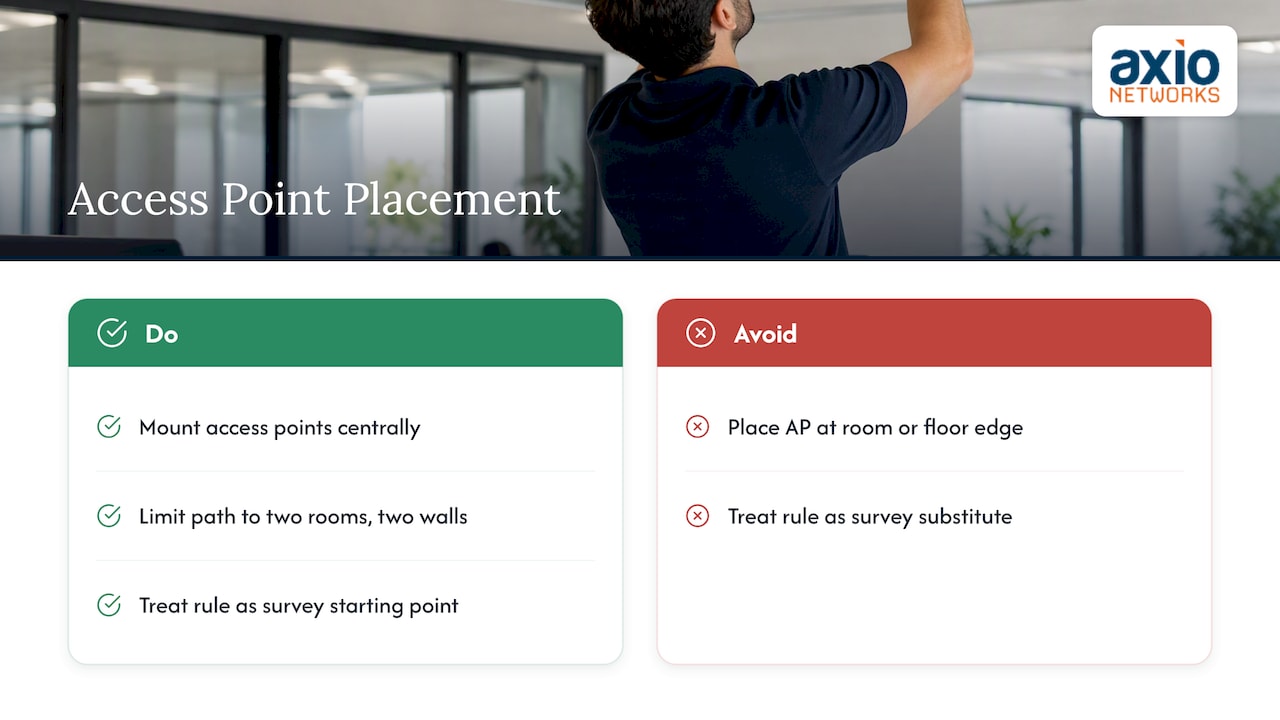
Meraki advises central placement: an access point at the edge of a room or floor forces its signal through extra walls and can produce asymmetric links, where the device hears the access point but the access point cannot hear the device. Central placement reduces attenuation and balances the load.
A useful rule of thumb comes from Ars Technica’s guide to access point placement: try to keep no more than two rooms and two interior walls between an access point and its devices. The author calls it a fuzzy rule, and it is. Treat it as a starting point for a survey, not a substitute for one.
Mount below the ceiling, not above it
Meraki is direct on this point: do not install access points above drop ceilings. Ceiling tiles, plenum space and ductwork absorb and block signal, wasting transmit power. Mount the unit below the ceiling line, in the open. Where a ceiling is very high, such as a warehouse or open-plan loft, mounting height and antenna type become design decisions of their own.
Keep the aesthetic from overruling the physics
Hiding an access point in a closet, behind a TV or inside a cabinet is the most common cause of poor coverage we see described in the field. If the look matters, plan for it at the design stage. Ceiling-mount models, wall plates and cable runs are far easier to place before the drywall is finished.
Plan the cabling at the same time
Every access point needs a wired connection back to a switch, usually with power over Ethernet. Cable runs, switch ports and power budget belong in the same plan as the radio layout. A design that puts an access point where no cable can reach is not a design. Our network infrastructure design work treats cabling, switching and wireless as one system for that reason.
Choosing bands and channels
What each band is for
HPE Aruba and Cisco design principles agree that modern enterprise networks should not rely on 2.4 GHz for primary connectivity. It has few non-overlapping channels and is crowded by neighboring networks and household devices. Use it for legacy devices that need it, and put performance-sensitive traffic on 5 GHz and 6 GHz, where wider, cleaner channels exist. We cover the tradeoffs in plain terms in our piece on 2.4 GHz versus 5 GHz Wi-Fi.
For a deeper look at band strategy, channel planning and the newest features, this article on band strategy and channel planning is worth reading alongside this one.
The 6 GHz band in the United States
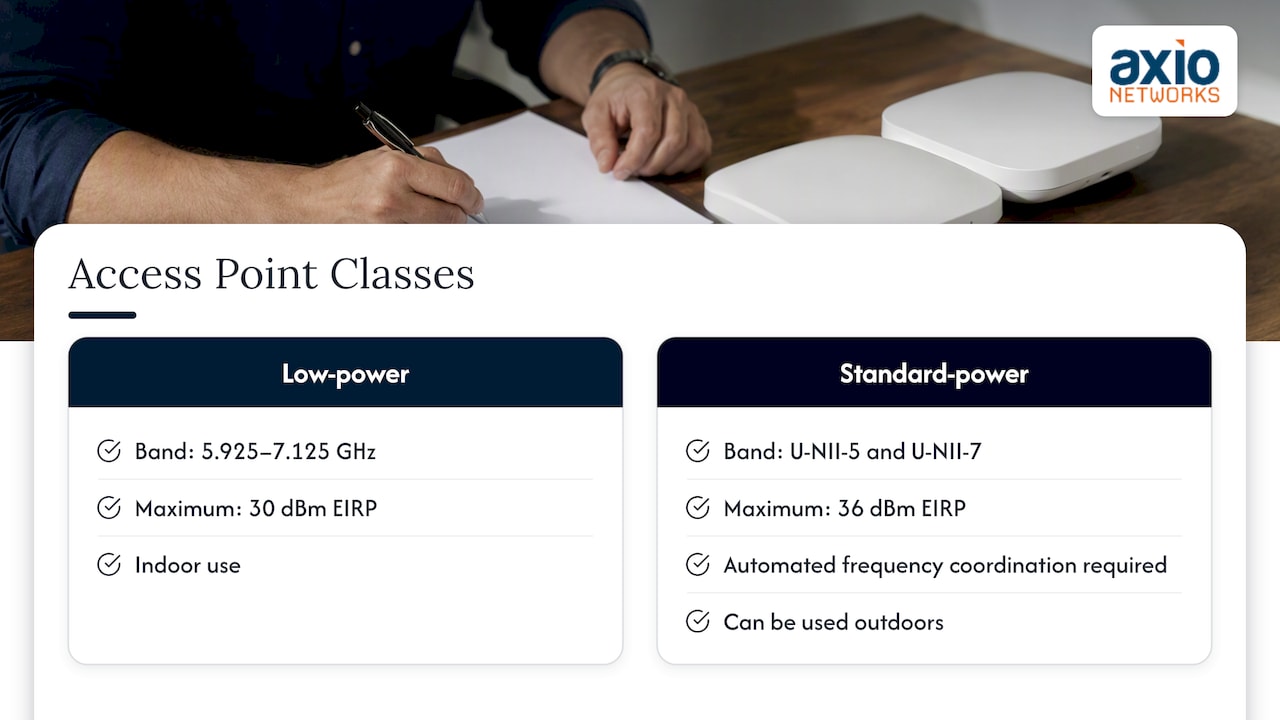
In the U.S., the FCC’s 2020 Report and Order opened the 6 GHz band (5.925 to 7.125 GHz). Low-power indoor access points may use the whole band at up to 30 dBm EIRP. Standard-power access points, which can also be used outdoors, are limited to the U-NII-5 and U-NII-7 portions, may run up to 36 dBm EIRP, and must use an automated frequency coordination system to protect licensed microwave links. Rules differ in other countries, so do not assume a design from another market applies here.
Wi-Fi 7 in a design
The Wi-Fi Alliance’s Wi-Fi CERTIFIED 7 announcement describes features such as Multi-Link Operation, which lets a device use several links at once, and 320 MHz channels where 6 GHz is available. The same announcement expects more than 233 million Wi-Fi 7 devices in 2024, growing to 2.1 billion by 2028.
For an office, the practical takeaway is modest. Buying Wi-Fi 7 access points can make sense for a refresh, but your laptops and phones decide what you actually get. HPE Aruba suggests creating a dedicated SSID for Wi-Fi 7 so new features do not disrupt legacy clients. And very wide channels are rarely right for a dense office, because they leave fewer channels to reuse across access points.
Tuning that pays off
- Set a minimum data rate. Meraki notes that default settings often let legacy devices connect at very low rates, which eats airtime for everyone. Practitioners typically set a minimum such as 12 or 24 Mbps, which also encourages devices to roam to a closer access point.
- Limit SSIDs. Each broadcast network adds management overhead. Two or three well-planned SSIDs beat eight.
- Reduce power where cells overlap. A smaller, cleaner cell is better than a loud one.
A quick comparison of common office layouts
| Space | Main challenge | Design approach |
|---|---|---|
| Open-plan office | Many users sharing airtime | Evenly spaced access points, moderate power, channel reuse |
| Private offices off a corridor | Walls absorbing signal | Access points in or near rooms, not only in the hallway |
| Conference rooms | Short bursts of high density | Dedicated access point or ceiling placement inside the room |
| Warehouse or shop floor | Height, metal racking | Survey-driven placement, possible directional antennas |
| Guest lobby | Unmanaged devices | Separate guest network with bandwidth limits |
Security is part of the design
A wireless network is a door into your business network. NIST’s SP 800-97 guidance recommends that organizations move away from pre-shared keys for enterprise use and adopt IEEE 802.1X with EAP, which gives stronger, more scalable authentication and can tie into an existing directory service. The publication dates from 2007 in its original form and is a foundational reference rather than the latest word, so pair it with current vendor guidance for WPA3.
What that means in practice:
- Staff network: individual credentials through 802.1X, so removing an employee removes their access without changing a password for everyone.
- Guest network: isolated from internal systems, with its own bandwidth cap.
- Devices that cannot do 802.1X: printers and similar gear go on their own segment with tight rules.
- Monitoring: rogue access points and unusual connections should raise an alert, not wait for an annual audit.
This is where we think design and security should never be separate projects. See our cybersecurity services for how that works alongside the network.
Validate, then keep watching
Cisco’s guidance stresses that design is an ongoing process requiring validation with the actual client devices that will be used. In practice:
- Predictive design: a floor-plan model with wall types to estimate access point count and position.
- Pilot installation: mount a few access points in their planned positions.
- On-site validation: walk the space with the devices your team uses, measuring signal strength, throughput and roaming.
- Adjust: move, retune or add units where measurements fall short of your targets.
- Monitor: watch client counts, retry rates and channel use over time, because offices change. New partitions, new tenants and new devices all shift the picture.
Our article on network monitoring and performance tuning explains why that last step is where most networks quietly decay. If you want a wider look at the basics first, start with how to build a reliable business Wi-Fi network.
Our perspective
Most wireless problems we hear about were not equipment failures. They were design decisions made without requirements: an access point put where the router happened to be, a guest network sharing the staff network, a password that has not changed since the person who set it up left.
We think wireless is one layer of the same system as your switching, cabling and security, and it should be designed and managed that way. That is why security is built into every service we deliver, and why we favor a local team that can walk your space instead of designing from a floor plan alone. For businesses without in-house IT, flat-rate management also means the tuning and monitoring after installation are not a surprise line item.
The biggest single improvement most offices can make costs little: pick the requirements, mount the access points properly, and test with real devices before calling it done.
— Jim O’Connell
Getting help with your design
If you run a business in Phoenix, Scottsdale or the surrounding metro area and want a design that fits your building and your team, our business wireless networking service covers planning, installation and ongoing support. If you would rather have wireless managed as part of your whole environment, see our managed IT services. Pricing is not published, so the first step is a conversation about your space and your needs.
FAQ
How many access points does an office need?
It depends on capacity and building materials, not square footage alone. A predictive model followed by on-site validation gives the reliable answer. As a rough starting point, keep users within about two rooms and two walls of an access point, then adjust for how many devices share each one.
Should I use 2.4 GHz at all?
Only for legacy devices that cannot use 5 GHz or 6 GHz. Enterprise design guidance from HPE Aruba and Cisco treats 2.4 GHz as a support band, not the main one. If your network must serve older equipment, keep it on a separate SSID.
Is a pre-shared password enough for business Wi-Fi?
For most businesses it is a weak long-term choice. NIST recommends 802.1X with EAP for enterprise networks because it provides individual credentials and scales better. A shared password is hard to rotate and impossible to tie to one person.
Do I need a site survey?
A predictive design helps you plan, but validation in the real space is what confirms it. Walls, furniture and neighboring networks behave differently than a model assumes. Testing with your own devices is the step that catches the problems.
Sources
- Cisco: Wireless LAN Design Guide for High Density Client Environments
- Cisco Meraki: Wireless for Enterprise Best Practices, RF Design
- HPE Aruba: Wi-Fi 7 planning and deployment
- Ars Technica: guide to Wi-Fi access point placement
- FCC-20-51 Report and Order on the 6 GHz band
- Wi-Fi Alliance: Wi-Fi CERTIFIED 7 announcement
- NIST SP 800-97: Establishing Wireless Robust Security Networks