A good server maintenance checklist comes down to five habits on a fixed schedule: confirm backups ran, watch capacity and alerts, patch on a cycle you test first, check hardware and security settings, and prove you can restore. Do these on a calendar, give each one an owner, and most server outages become preventable surprises instead of emergencies.
This guide gives you the tasks by cadence, a Windows Server patching routine, and a short runbook format so the work gets done the same way every time. It is written for business owners and office managers in the Phoenix area who rely on a server, whether it sits in a closet in Scottsdale or runs in the cloud.
TL;DR
- Daily: review overnight alerts, confirm backup jobs finished, and watch disk space and service health. It should take minutes, not hours.
- Monthly: patch on a regular cycle, test updates on a non-production server first, and check hardware, privileged access and firewall rules.
- Quarterly: run a real restore test. A backup you have never restored is an assumption, not a safeguard.
- Annually: review the whole environment, replace aging hardware and batteries, and rehearse disaster recovery.
- Make it stick: write each task down with an owner, a validation step and a rollback plan.
Table of Contents
- What server maintenance actually covers
- Daily server checks
- Weekly checks
- Monthly tasks
- Quarterly and annual tasks
- A Windows Server patching checklist
- Backups: the check that matters most
- Turn the checklist into a runbook
- Our perspective
- Who should own server maintenance?
- Want this handled for you?
- FAQ
- Sources
What server maintenance actually covers
Server maintenance is the routine work that keeps a server secure, fast and recoverable. It includes installing software updates, running hardware diagnostics, backing up data and assessing security. Plesk describes it as a systematic set of tasks, with a schedule that covers updates, security audits, hardware status, monitoring tools, backups and network utilization.
For a small or mid-sized business, the practical split is this:
- Detection work (daily and weekly): spotting trouble early.
- Prevention work (monthly and quarterly): patching, cleanup, firmware, access reviews.
- Recovery work (quarterly and annually): proving you can get data and services back.
Not every server needs the same attention. Systems the business cannot run without need tighter cycles than a secondary file server, and aging hardware deserves extra inspection whatever the standard schedule says. Rank your servers first, then assign cadence by risk.
Daily server checks
Daily checks are about noticing problems, not fixing them. If the list takes more than 15 minutes for a small environment, you are probably trying to do too much. Fixes become tickets with owners.
- Review overnight alerts. Look at monitoring alerts, warnings and unexpected reboots.
- Confirm backup jobs completed. Check for failures or warnings, not just a green icon from last week.
- Check disk and volume capacity. Flag anything trending toward full. A common working threshold is to investigate when a volume passes roughly 80% used.
- Test core services. Confirm that the file shares, line-of-business app, database and remote access respond the way a user would expect.
- Scan system and hardware logs. Look for repeated errors, failed logins and drive or memory warnings.
- Check certificate warnings. An expired certificate takes down websites and remote access without any hardware fault.
One warning about alerts: if your monitoring sends hundreds of notifications a night, nobody reads them. Alert fatigue is a leading cause of monitoring failures in general, so tune thresholds until an alert means something and requires action.
Weekly checks
Weekly work looks at trends the daily glance misses.
- Capacity trends: CPU, memory, disk and network usage over the past week, not just right now.
- Log review: repeated warnings, authentication failures and service restarts.
- Backup completion history: review the logs and replication status, not only that last night’s job passed.
- Security tool status: confirm endpoint protection is installed, running and current on each server, and review malware alerts.
- Pending reboots: servers often show updates as installed while waiting on a restart that never happened.
- Scheduled tasks: make sure the jobs you depend on actually ran.
- Network health: response times and latency to key servers, routers and switches.
ManageEngine’s weekly health checklist follows the same pattern: backups, resource usage, logs, security checks, disk health and network response times.
Monthly tasks
Monthly is where the heavier prevention work lives.
- Apply the approved patch cycle for the OS, applications and drivers, and reboot where required.
- Verify service integrity after patching.
- Review privileged access. Remove accounts for people who have left, and confirm administrator rights are still justified.
- Review firewall rules and exposed ports. Close anything nobody can explain.
- Inspect storage and hardware health: failed or degraded drives, RAID status, fans, power supplies and temperatures.
- Check free space. Keeping roughly 20 to 30% free on important volumes, as ManageEngine suggests, leaves room for updates and growth.
- Enforce multifactor authentication where the platform supports it, and look at failed login patterns.
- Update documentation and keep evidence of what you did and when.
Track patch age as a health metric, not an afterthought. A server with an unpatched vulnerability or a lapsed certificate is a liability even when its CPU graph looks perfect. Motadata recommends alerting on certificate expiration at 60, 30 and 14 days out.
Quarterly and annual tasks
Quarterly
- Restore test. Restore real files, a database or a whole virtual machine, and confirm the application works afterward.
- Firmware review: BIOS, remote management controllers, RAID controllers, network cards and drives. Apply updates that fix security issues or known faults.
- Physical checks: UPS self-test, dust on intakes and filters, cabling, and the temperature of the room.
- Alert testing: deliberately trigger an alert and confirm the right person receives it.
- Warranty and capacity review: know which servers are about to go out of support and how much headroom is left.
- Access review for management credentials.
Annually
- Full architecture review: technical debt, unsupported software, forgotten exceptions.
- Disaster recovery refresh: update the plan, contact lists and recovery order, then rehearse it.
- Full-load UPS and battery check, and replace batteries proactively as they age.
- Retire obsolete systems instead of leaving them powered on and unpatched.
A Windows Server patching checklist
Searches for Windows Server maintenance usually come down to one thing: patching safely. Here is a workable routine.
1. Know the rhythm
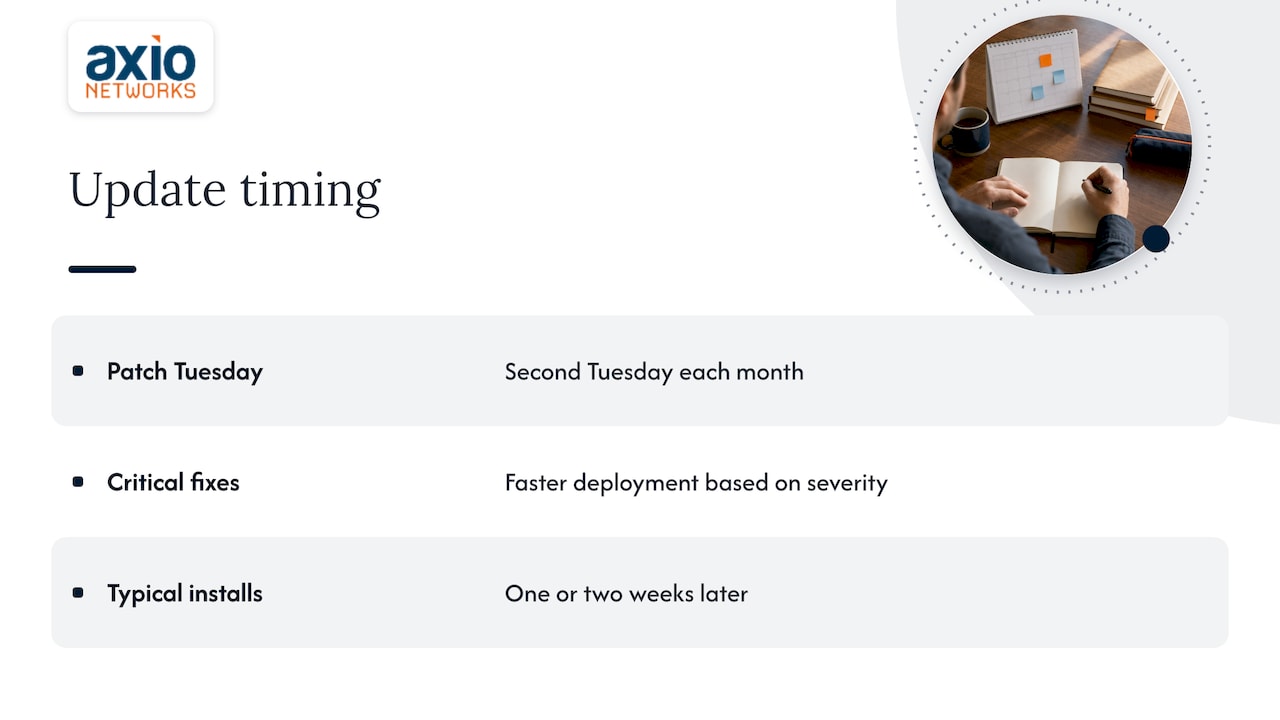
Microsoft ships routine updates on Patch Tuesday, the second Tuesday of each month. Critical fixes sometimes arrive outside that cycle, and those need faster deployment based on severity and whether attackers are already exploiting the flaw. Many businesses install monthly updates a week or two after Patch Tuesday, with business-critical servers getting more frequent attention. For a deeper look at the process, see our guide to patch management for business.
2. Take a restore point first
Confirm a recent, good backup exists and that you know how to roll back. If the rollback method has never been tested, fix that before patching a production server.
3. Test on non-production servers
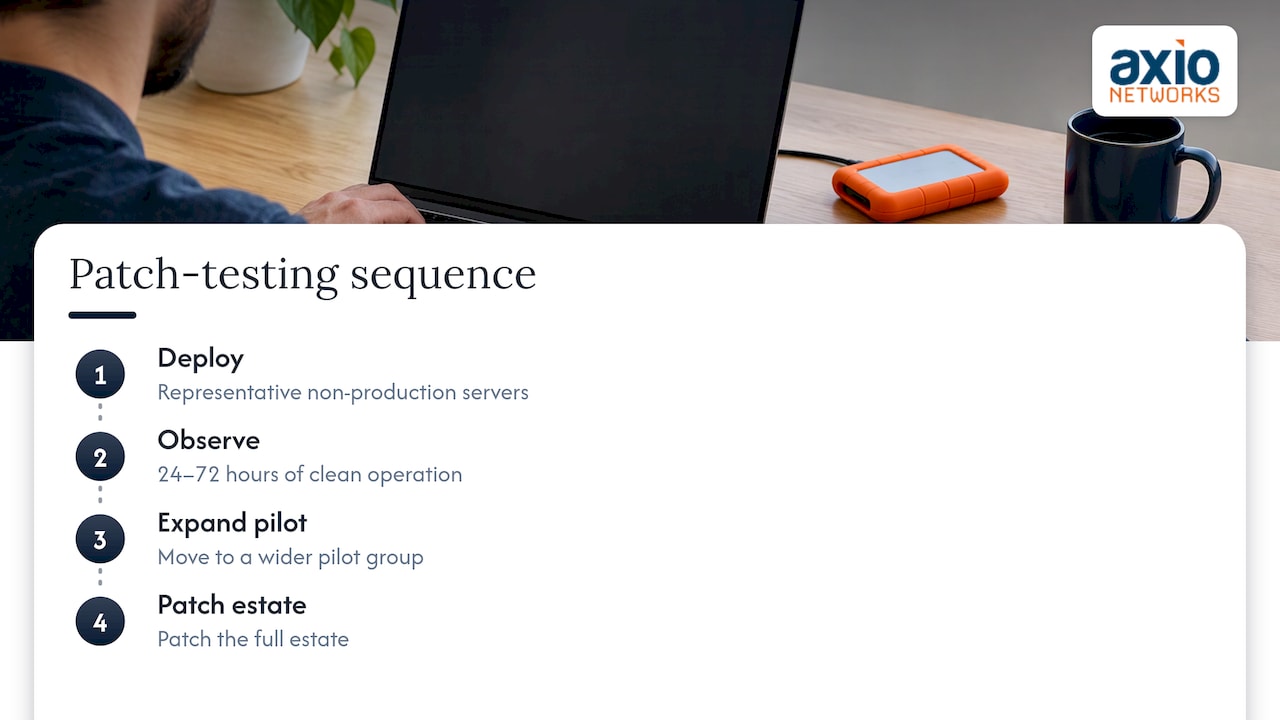
Testing is the step that gets cut first under pressure, and the one people regret skipping. Kaseya recommends deploying to a representative set of non-production servers, observing 24 to 72 hours of clean operation, then moving to a wider pilot group and finally the full estate. Even a small business with two servers can apply this: patch the less critical one first and wait a day or two.
4. Patch in a maintenance window
Pick a time when the business can tolerate downtime, tell staff, and patch in a set order. Stop and escalate if a precheck fails. Do not improvise.
5. Verify twice
Verification has two layers: did the patch install, and is the vulnerability actually fixed. Watch for “pending reboot” or “deferred” states that look fine but are not, and run a vulnerability scan afterward.
6. Record it
Note what was patched, when, who did it, and what happened. A finding without a ticket gets forgotten by next week.
For the endpoint side of the same discipline, our post on patching known exploits first explains how to prioritize.
Backups: the check that matters most
Every list in this article has backups near the top for a reason. A job that reports success has not proven that the data can come back.
The University of Toronto’s IT Services advises recovery testing at least quarterly for critical systems, at least annually for non-critical ones, and after significant infrastructure or backup configuration changes. Its guidance is blunt: a restore that has not been tested should not be assumed to work.
A simple restore drill:
- Pick a file, a folder and one full server or virtual machine.
- Restore them to a separate location or alternate hardware.
- Confirm the files open and the application starts.
- Time the process and compare it with how long the business can be down.
- Treat any failure as an incident: open a ticket, find the cause and retest.
Our walkthrough on how to test your backups covers the details, and the difference between backup and disaster recovery is worth settling before you build a plan.
Turn the checklist into a runbook
A checklist becomes reliable when every task can be run by someone other than the person who wrote it. Varidata’s guidance is that each task needs prechecks, steps, expected output, validation and rollback notes. A compact entry for each recurring task looks like this:
| Field | What to write |
|---|---|
| Objective | What the task achieves, in one line |
| Scope | Server or group, service, environment |
| Window and risk | When it runs and what could go wrong |
| Prechecks | Backup confirmed, dependencies healthy, approval granted |
| Steps | Literal actions, no ambiguity |
| Validation | Service responds, port is bound, error count is normal |
| Rollback | Trigger, procedure and who decides |
| Owner | Primary maintainer, a backup and a reviewer |
Two habits keep this working. First, keep emergency fixes, project work and routine maintenance separate, so an urgent repair does not quietly replace the recurring checks that prevent the next failure. Second, set a review interval for the runbook and name the events, such as a new server or a software migration, that trigger an earlier review.
Our perspective
Most of the server problems we are called in to fix were visible weeks earlier: a backup that had been failing quietly, a disk creeping toward full, a patch that nobody scheduled. The checklist is easy. The discipline of doing it every day is what small businesses struggle with when the same person is also running the front office.
That is why we build maintenance into our managed service rather than treating it as an extra. Our approach is security-first: patching, monitoring, backup verification and access reviews are designed to work together, so a maintenance task is never separated from the question of how it affects your exposure. Our local team knows the Phoenix-area businesses it supports, and our flat-rate model is designed to keep these routine tasks from turning into surprise invoices.
If you take one thing from this list, make it the restore test. Everything else on the page reduces the chance of a problem. The restore test is what you rely on when the problem arrives anyway.
Jim O’Connell
Who should own server maintenance?
If you have a capable in-house technician, the list above can be run internally, as long as it has a named owner, a backup person and a reviewer. If your server work currently depends on one employee, an owner who “knows computers”, or whoever is available when something breaks, the schedule will slip during your busiest weeks. That is when problems are most expensive.
This is the situation managed IT services are built for. We handle server administration as part of an ongoing agreement: monitoring, patching, backup checks and documentation done on a schedule, with a team you can reach when something goes wrong. If you are weighing the option, what managed IT services include is a good starting point. Our guide to proactive IT maintenance explains how the routine looks for a small business.
Want this handled for you?
Axio Networks provides managed IT and cybersecurity for small and mid-sized businesses across the Phoenix metro area, with an average response time under 30 minutes, a dedicated local team and flat-rate pricing. Server maintenance, patching and verified backups are part of how we work, with security built into each step.

See how our managed IT services work, or look at our backup and disaster recovery service if recovery is your first concern.
FAQ
How often should a server be maintained?
In short, a little every day and more each month. Daily and weekly checks catch problems early, monthly work covers patching and access reviews, and quarterly and annual tasks cover restore tests and hardware. Critical servers should follow tighter cycles than secondary ones.
What is the first thing to check on a failing server?
Start with alerts and logs, then disk space, memory and service status. Before changing anything, confirm a recent backup exists. If a precheck fails or you are unsure, stop and escalate rather than guess.
How soon should Windows Server updates be installed?
There is no single rule. Many businesses patch monthly, a week or two after Patch Tuesday, after testing on a non-production server. Critical, actively exploited flaws should be handled faster, and more sensitive environments use shorter windows.
What is a server maintenance plan?
It is the written schedule of tasks, owners and procedures that keeps servers healthy. A useful plan lists each task with its cadence, steps, validation and rollback, and gets reviewed on a set interval.
Sources
- Server Maintenance Best Practices, Plesk
- Server Health Monitoring Checklist, Motadata
- Server monitoring checklist, ManageEngine OpManager
- Patch Tuesday, Wikipedia
- Server patching best practices for Windows IT teams, PDQ
- The Patch Management Process: A Step-by-Step Guide, Kaseya
- Data Backup and Testing Best Practices, University of Toronto IT Services
- How to Build a Server Maintenance Plan, Varidata
Recommended
- The Daily Cloud Checkup: A Simple 15-Minute Routine to Prevent Misconfiguration and Data Leaks
- Proactive IT Maintenance: A Practical Guide for Small Business
- The Server Refresh Deadline: Why Windows Server 2016’s End of Support Should Drive Your Cloud Migration Plan
- How to Keep Your Software and Apps Up to Date