When your office network goes down, the fastest fix comes from narrowing the fault before you touch anything: one device, the office network, or the internet provider. Work outward in that order, write down what you see, and hand the problem to someone with evidence in hand once your time box runs out. If you have no IT staff, our managed IT services are built so that the escalation is a phone call to a team with an average response time under 30 minutes.
TL;DR
- Define the scope first: one desk, one department or the whole building, and when it started.
- Check power, cables, link lights and the UPS (the battery backup) before you reboot or reset anything.
- Use ping to separate three failures: your device, your local network, and your provider or DNS.
- If more than one person is affected and you have no working theory after about 20 minutes, escalate with notes and timestamps.
- Most repeat outages are preventable with monitoring, a backup connection and a written plan.
Table of Contents
- Start by defining the fault
- Is it the device, the office network or the provider?
- Physical checks that solve more than you expect
- Work outward with ping and a few commands
- Common causes of network outages
- When to escalate, and what to bring
- Write it down while you work
- Why a managed team beats doing this alone
- What we do about network outages
- Prevent the next outage
- FAQ
- Sources
Start by defining the fault
The urge when the internet drops is to restart everything. Resist it for two minutes. A reboot can erase the evidence you need, and it fixes only a fraction of real faults.
Ask four questions and write the answers down:
- How many people are affected? One desk, one department, one floor or everyone?
- When did it start? Exact time, if you know it.
- What changed beforehand? A new switch, a firmware update, a power flicker, construction outside, a new employee plugging in a cable.
- What does “down” mean? Completely unavailable, slow, or dropping in and out? Intermittent faults often point to a failing cable, port or an overloaded link rather than a clean break.
These answers do most of the diagnosis. If one person cannot work and everyone else can, you are looking at a single device or a single cable. If the whole building is dark, you are looking at the router, the modem, the line or the provider.
Is it the device, the office network or the provider?
The cleanest first test is a second device on the same network. The logic is simple:
- Only one device fails: the fault is on that device. Think Wi-Fi adapter, network settings, a VPN client or security software.
- Wi-Fi devices fail but wired ones work: the wireless side of your router or access point is the problem, not the provider.
- Every device fails, wired and wireless: the fault is at the router, the modem or beyond.
A common trap is the Wi-Fi signal bars. Strong bars only show that a device can see your local wireless equipment, not that the provider connection is working. If you suspect a Wi-Fi-only problem, our guide on fixing common Wi-Fi connection issues walks through it.
Next, look at the modem or gateway lights. A red, orange or blinking Internet or Online light usually points to the line or the provider. Then check the provider’s outage page or app from a phone on mobile data, since your own network is the thing you cannot trust right now. If the provider lists an outage for your area, stop troubleshooting and wait for the repair. Nothing you do inside your office will speed it up.
Physical checks that solve more than you expect
Before any command line, walk to the equipment. Most office network faults are mundane: a loose lead, a disconnected power supply, a failed port or a damaged cable.
Work through this list in order:
- Power. Confirm the modem, router, firewall and switches all have power and normal indicator lights.
- The UPS. Check that the battery backup has not tripped or run out of charge. A UPS that quietly died months ago is a classic cause of an outage after a brief power flicker.
- Cables. Reseat the Ethernet cable at the computer, the wall jack, the patch panel and the switch. Look for link lights at both ends of each cable.
- Obvious damage. Pinched, kinked or chewed cables, and ports that look bent or corroded.
If these checks turn up nothing, a power cycle is reasonable. Provider guidance for business gateways, such as AT&T’s small-business troubleshooting steps, is to unplug the gateway for 15 seconds, reseat the battery if it has an internal backup, plug it back in and wait for the lights to stop flashing before testing again.
One firm rule: do not factory-reset a router, firewall or managed switch unless you have a current backup of its configuration. A reset can wipe static IP addresses, VPN access, phone settings, camera settings and guest network rules, and turn a 20-minute outage into a half-day rebuild.
Work outward with ping and a few commands
If the hardware looks healthy, test the network in layers, starting at the affected computer and moving toward the internet. On a Windows machine, open Command Prompt or PowerShell. The same logic applies on a Mac with different command names.
Step 1: Check the IP address
Run ipconfig. A normal address on an office network is a private one such as 192.168.x.x or 10.x.x.x. An address starting with 169.254 means the computer asked for an address and nobody answered, which points to a failed DHCP service (the service, usually in the router or a server, that hands out addresses). Try ipconfig /release followed by ipconfig /renew. If it still fails, the DHCP source is down or unreachable.
Step 2: Ping the default gateway
The default gateway is your router. Ping its address, shown in the ipconfig output. If it does not answer, the problem is inside your local network: the cable, the switch, the router itself or the Wi-Fi.
Step 3: Ping a public address
If the router answers, ping a public address such as 8.8.8.8 (a Google DNS server) or 1.1.1.1. If those fail while the router answers, the fault sits in the modem, the line or the provider.
Step 4: Ping a name
If the public address answers but ping google.com fails, the internet is working and DNS is not. DNS is the directory that turns website names into addresses. This is one of the most common false “the internet is down” alarms. Changing the DNS server on the device to a public one such as 1.1.1.1, 8.8.8.8 or 9.9.9.9 confirms it. Cisco’s network troubleshooting overview describes how ping and tracert tests help locate a problem upstream of the modem.
Step 5: Trace the path
Run tracert 8.8.8.8, or pathping 8.8.8.8 for per-hop packet loss. Read the result carefully. Loss that begins at one hop and continues all the way to the destination is real. Loss at a single hop that disappears at the next hop usually means that router is simply busy and deprioritizing replies.
Here is how the ladder reads in practice:
| What fails | What answers | Likely location |
|---|---|---|
| Gateway ping | Nothing | Inside your office network |
| Public IP ping (8.8.8.8) | Gateway | Modem, line or provider |
| Ping by name (google.com) | Public IP | DNS |
| Only one application | Everything else | The application, its server or a firewall rule |
For a single application, Test-NetConnection app.example.com -Port 443 in PowerShell checks whether one specific port is reachable, which helps when email or a cloud app fails while web browsing works.
Common causes of network outages
Once you have placed the fault, the cause is usually one of these:
- Hardware failure. Aging switches, routers, power supplies and cables fail. A single dead switch can take down a whole department.
- Power problems. Outages, brownouts and exhausted UPS batteries.
- Provider or line faults. Construction damage, equipment failures and weather. Weather, access and safety conditions also affect how quickly a provider can restore service.
- Configuration errors. A bad change on a firewall, switch or router, often made shortly before the outage.
- Service dependencies. A failing DNS server affects web browsing, while DHCP downtime stops new devices from connecting. Paessler’s guide to systematic network troubleshooting recommends mapping which services depend on which servers before you diagnose.
- Overload. A backup job, a large upload or a misbehaving device saturating the link. This produces the “technically up but crawling” kind of outage, which is harder to spot than a clean failure.
- Attacks and malware. Ransomware, a compromised device flooding the network, or a denial-of-service attack can all look like an ordinary outage at first.
That last point matters for a business. If an outage coincides with strange pop-ups, locked files or a single machine behaving oddly, treat it as a security event and follow your incident response plan steps rather than just rebooting.
When to escalate, and what to bring
Troubleshooting without a time limit is how a 15-minute problem becomes a lost afternoon. Set a limit and stick to it. A sensible rule is to hand off when you have no working theory after about 20 minutes, or as soon as more than one user is affected.
What to do depends on what the tests showed:
- Fault inside your office: bring in whoever manages your network, with your notes.
- Fault at or beyond the modem: call your internet provider. This step belongs to the provider, because only it can see its own line. Have the circuit ID or account number ready, a test from a computer plugged straight into the modem, and
pathpingoutput with timestamps. Loss that starts at the first hop past your firewall and continues to the destination is exactly the evidence that gets past a scripted first-level response.
The difference in how you are treated is large. “The internet is slow” gets you a script read back to you. “Loss starts at hop 3 and continues to the destination, here is the output from 10:42” gets you a technician.
How long should an outage take to fix?
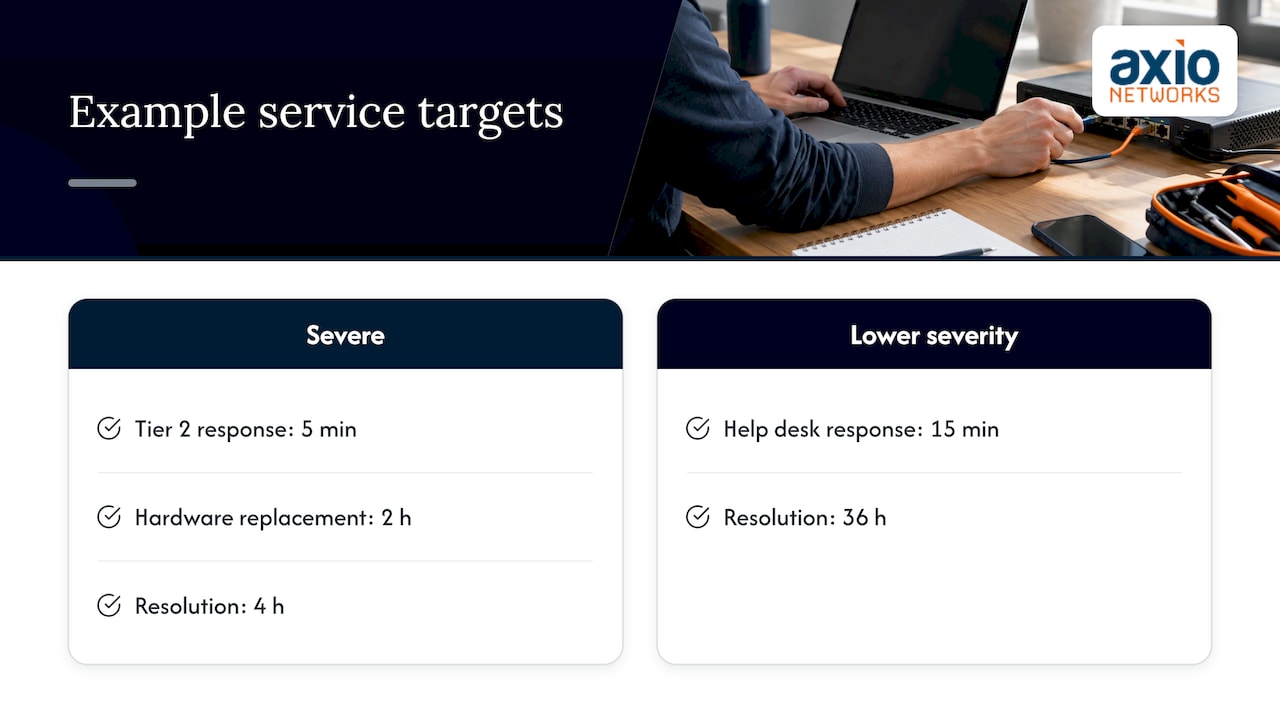
It depends entirely on what failed and who is fixing it. For a sense of how professionals set expectations, Cisco’s service level management white paper gives example targets: for the most severe problem, a second-tier engineer responds in 5 minutes, hardware is replaced within 2 hours and the problem is resolved in 4 hours. A lower-severity problem in the same example allows a 15-minute help desk response and a 36-hour resolution. These are examples of how a service agreement can be structured, not a promise from any provider, so read your own provider agreement for the real numbers.
The lesson for a small business is to decide in advance how long each system can be down. CISA’s incident management guidance says that a technical disruption whose time to repair exceeds the acceptable recovery time of a critical service may be the point at which you declare an incident. It also notes that failing to identify events in a timely way can significantly raise recovery costs and effort, and that smaller organizations without a formal help desk can assign detection to specific IT staff or a third-party provider.
Write it down while you work
Keep a simple log during every outage: time started, what you checked, what you changed, what happened. Three reasons:
- You will not repeat steps or undo your own fixes.
- The provider or your IT team can act on it immediately.
- After the outage, it shows you the pattern. Three outages that all trace to the same switch tell you what to replace.
An outage log is also the raw material for a short after-action review: what failed, how long it took to notice, how long to fix, and what would have prevented it.
Why a managed team beats doing this alone
Everything above works. The problem is that it works only when someone who understands it is on site, awake and not busy running the business. For a company with no in-house IT, an outage means the owner or the office manager is reading command output at the worst possible moment, while staff and customers wait.
The common failure modes are predictable:
- Nobody noticed the outage until employees complained, because nothing was watching.
- A reset was done without a configuration backup.
- The provider was called without any evidence, so the case sat in a queue.
- The same fault returned because the cause was never found.
A managed IT provider takes these off your plate by catching problems early and owning the diagnosis. With a flat monthly rate, you also avoid the surprise invoice that usually arrives with an emergency call.
What we do about network outages
Axio Networks handles managed IT and cybersecurity for small and mid-sized businesses across the Phoenix metro area, including Scottsdale. Our managed network services cover network and server administration with remote and on-site support, and our help desk responds in under 30 minutes on average. Because security is designed into every service, an outage that is really an attack is treated as one from the first call, backed by SOC monitoring and endpoint protection. Pricing is flat-rate, so IT stays a predictable line in your budget.

If you would rather not be the person tracing cables during an outage, talk to Axio Networks about managed IT.
Prevent the next outage
The best troubleshooting is the kind you rarely need. A few measures cut both the number and the length of outages:
- A backup internet connection. A single line is a single point of failure. Our guide to internet failover for business explains how an office stays online when the primary line drops.
- Segmentation. Separating guest Wi-Fi, phones, cameras and office computers keeps one problem device from taking down everything. See our network segmentation plan for small businesses.
- Monitoring. Alerts that reach someone before your staff notice turn a morning-long outage into a short blip.
- Configuration backups. So a failed device is replaced and restored, not rebuilt from memory.
- Healthy power. Test UPS batteries and replace them on schedule.
- A written plan. Who to call, in what order, with account numbers and circuit IDs in one place. For a quick checklist your staff can follow, see what to do if your internet goes down.
Our view: an outage is a process failure, not bad luck
In our experience of how small businesses approach IT, the same pattern repeats: the network is treated as something that works until it does not, and then everyone improvises. We think that is backwards. An outage is the moment you find out whether anyone was responsible for the network in the first place.
That is why we build around three ideas. First, security-first design: every service we deliver includes security measures, because an outage and a breach often look identical for the first ten minutes. Second, a local team that knows Phoenix-area businesses, so a problem is handled by people who can be on site and understand your environment. Third, flat-rate pricing, so nobody hesitates to call us because of what the call might cost.
The checks in this guide are the right ones, and any owner can run them. But the value of managed IT is that you do not have to: monitoring catches the fault, our help desk starts the diagnosis, and you get back to work.
Jim O’Connell
FAQ
How do I troubleshoot a network issue?
Define the scope, then check power, cables and lights, then test in layers: your device, your router, a public IP address and finally a website name. Each layer that answers tells you the fault lies further out. Stop and escalate when you have no theory after about 20 minutes.
Why do network outages happen?
The usual causes are failed hardware, power problems, provider or line faults, bad configuration changes, overloaded links and malicious attacks. Many outages trace to something simple, such as a loose cable, a dead UPS battery or a failed switch port.
How long do network outages take to fix?
It varies from minutes for a reseated cable to hours or longer for a line fault, where weather and access can slow the provider’s repair. Check your provider agreement for its stated targets, and set your own acceptable downtime for each critical system so you know when to treat an outage as an incident.
When should I call my internet provider?
Call once your tests show the router is healthy but nothing beyond it answers, or when a trace shows packet loss starting just past your firewall and continuing to the destination. Have the circuit ID, a test from a computer connected directly to the modem and timestamped results ready.
Should I factory-reset my router to fix an outage?
Only with a current configuration backup in hand. A reset can remove static IPs, VPN access, phone and camera settings and guest network rules. If you manage a business network without backups, that is the moment to bring in your IT team.
Sources
- AT&T Business: Troubleshoot Your Internet
- Cisco: What is Network Troubleshooting?
- Cisco: Service Level Management Best Practices White Paper
- CISA: CRR Supplemental Resource Guide, Volume 5, Incident Management
- Paessler: Network Troubleshooting, A Systematic Approach for IT Professionals