Use the Exchange admin center’s automated migration for Gmail, contacts, and calendars, pair it with Migration Manager for Drive content, and run a small pilot batch with verified identity mapping before you touch production mailboxes. If your team lacks the bandwidth to manage endpoints, throttling, and exception handling in parallel, consider using a managed migration partner.
TL;DR:
- Verify domain ownership and stage DNS records carefully to ensure mail flow and prevent failures during migration.
- Prepare user mailboxes, storage mappings, and pilot groups well in advance, and disable Archival policies to avoid data loss.
- Use the Exchange admin center’s automated migration for Gmail, contacts, and calendars, along with Migration Manager for Drive content.
- Schedule migration batches during off-peak hours, monitor progress closely, and stage cutover for a smooth transition with coexistence routing.
- Consider a managed migration partner if your team lacks capacity to handle endpoints, permissions, and troubleshooting, especially for large tenants.
Table of Contents
- Phases and methods for moving Google Workspace to Microsoft 365
- What to check before you start migrating
- Migrating Gmail, contacts, and calendars step by step
- Moving Drive and shared drive content with Migration Manager
- Finishing the cutover and confirming it worked
- Handling scale limits and common migration failures
- When DIY migration makes sense and when it doesn’t
- What actually determines a smooth migration
- Get migration support from a local, security-first team
- FAQ
- Sources
Phases and methods for moving Google Workspace to Microsoft 365
A Google Workspace to Microsoft 365 move breaks into five phases: identity and domain prep, email migration, Drive and shared drive migration, cutover, and verification with user adoption. Each phase has a natural owner and a natural tool, and skipping the prep phase is the single biggest cause of failed cutovers.
For mail, the automated Exchange admin center migration handles the bulk of Gmail, contacts, and calendar data for most tenants. For files, Migration Manager is Microsoft’s recommended path for Drive and shared drives. Third-party tools fill gaps for complex edge cases like custom label structures or non-standard app integrations.
You will need three roles active throughout the project:
- A Microsoft 365 Global admin to provision users and configure endpoints.
- A delegated Migration admin to run and monitor batches.
- A Google Workspace super admin to authorize API access and service accounts.
Microsoft’s own migration checklist walks through this same sequence at a high level, and it’s worth reviewing before you lock a project timeline.
What to check before you start migrating
Before any batch runs, confirm domain ownership and stage your DNS so mail keeps flowing during coexistence. Most failed migrations trace back to a prerequisite that got skipped, not a tool limitation.
- Verify domain ownership in Microsoft 365 and prepare TXT and MX records for staged routing rather than an abrupt cutover.
- Create and authorize a Google service account with the OAuth scopes the BitTitan migration guide documents for Gmail API access.
- Provision Microsoft 365 user mailboxes in advance, or prepare a CSV mapping file if you plan to automate user creation during the batch.
- Decide destination mapping up front: personal files go to OneDrive, team and departmental files go to SharePoint Online.
- Audit mailbox sizes, Drive storage per user, shared drive counts, connected third-party apps, and any retention or archival policies in Google Workspace.
- Define a pilot group of 10 to 25 users across departments and schedule the batch for an off-peak window.
Pro Tip: Disable Messaging Records Management and any Gmail archival policies before you start; leaving them active causes items to go missing during migration and complicates your reconciliation reports later.
Migrating Gmail, contacts, and calendars step by step
The Exchange admin center’s automated migration path is built specifically for this move, and it handles most of the heavy lifting once your endpoint is configured correctly.
- Create a migration endpoint in EAC by importing the Google service account JSON key you generated during prep.
- Leave the default concurrency settings in place for most tenants: maximum concurrent migrations is set to their default recommended limits, with concurrent incremental syncs at their default recommended levels (https://learn.microsoft.com/en-us/exchange/mailbox-migration/automated-migration-neweac), and only raise these if your pilot shows headroom.
- Prepare a CSV with an EmailAddress column (and a Username column if display names differ from addresses), then import it to build your migration batch.
- Select Google Workspace (Gmail) migration as the batch type and let EAC automate prerequisite checks where it supports them.
- Schedule the batch to start during a low-traffic window, then monitor status until mailboxes show “Synced.”
Before full cutover, set up a subdomain mail-routing technique so Gmail and Exchange Online can coexist while you verify the pilot group. Once mail, calendar events, and contacts check out for pilot users, complete the migration batch to finalize their move, then update routing for the next wave. This staged approach catches mapping errors on a small group instead of your entire directory.
Moving Drive and shared drive content with Migration Manager
Migration Manager follows a connect, scan, map, and migrate sequence, and Drive content needs a different mindset than mail because permissions and folder structures carry real organizational meaning.
- Install and authorize the Microsoft 365 migration app inside your Google Workspace admin console before running any scans.
- Run an initial scan and download the report to flag unsupported file types and orphaned files that have no clear owner.
- Assign migration tasks per user or shared drive, confirming each destination: OneDrive for individual Drive content, SharePoint for shared and team drives.
- Review the automatic path mapping Migration Manager proposes, since it does not always match your intended SharePoint site structure.
- Recreate Microsoft 365 groups that mirror your Google Groups membership so shared-drive permissions map correctly after the move, a step Microsoft’s own FAQ flags as a common failure point.
Migration Manager Lite auto-provisions OneDrive for eligible small and mid-sized tenants, cutting several manual provisioning steps out of smaller projects.
File-level permission migration is off by default, some file types are unsupported, and version history does not always carry over cleanly, so budget time to spot-check a sample of migrated files against their originals.

Finishing the cutover and confirming it worked
Once pilot and production batches show “Synced” and complete, update your MX records to route all mail through Microsoft 365 permanently, then remove the temporary subdomain routing you used for coexistence.
- Verify mail delivery, calendar entries, contacts, and shared-drive permissions for a sample of users across every department, not just the pilot group.
- Confirm OneDrive provisioning completed for every migrated user and that SharePoint sites reflect the folder structure you mapped earlier.
- Move any oversized files that exceeded migration limits to Azure Blob or Azure Files, and document the new location so users can still find them.
- Reconcile retention policies and legal holds against your previous Google Workspace settings, and enable auto-expanding archive for mailboxes that need it.
- Run user acceptance checks with a short list of common tasks: send mail, open a shared file, join a calendar invite.
- Watch migration logs and the Microsoft performance dashboard for file-share migration history to catch any batches that stalled or partially completed.
Give users a short reference guide for the handful of things that look different on day one: where shared files live now, how to find old email threads, and who to contact with issues.
Handling scale limits and common migration failures
Large tenants and heavy Drive usage expose limits that a small pilot never will, so plan for them before they surprise you mid-migration.
- Files larger than 250 GB won’t migrate through standard paths; move them to Azure Blob or Azure Files and document the new path for affected users.
- For mailboxes that outgrow standard limits, auto-expanding archiving supports growth up to 1.5 terabytes per user, which covers most legal and compliance retention needs.
- Google’s export APIs throttle under heavy load, so group files into 100 to 250 megabyte packages and run migrations across multiple agent accounts to keep throughput steady.
- Never rely on Migration Manager’s automapping for identity ownership. Export a CSV and manually verify every mapping before you run a bulk batch, especially for shared drives tied to Google group membership.
- Schedule bulk batches for off-peak hours and stagger large tenants in waves rather than attempting a single cutover weekend.
Pro Tip: If a wave stalls repeatedly on the same error code, open a Microsoft support case with the batch ID before re-running it; retrying blind usually just repeats the same failure.
When internal bandwidth or timeline pressure makes wave-by-wave troubleshooting impractical, that’s usually the signal to bring in a managed migration vendor instead of pushing through alone.
When DIY migration makes sense and when it doesn’t
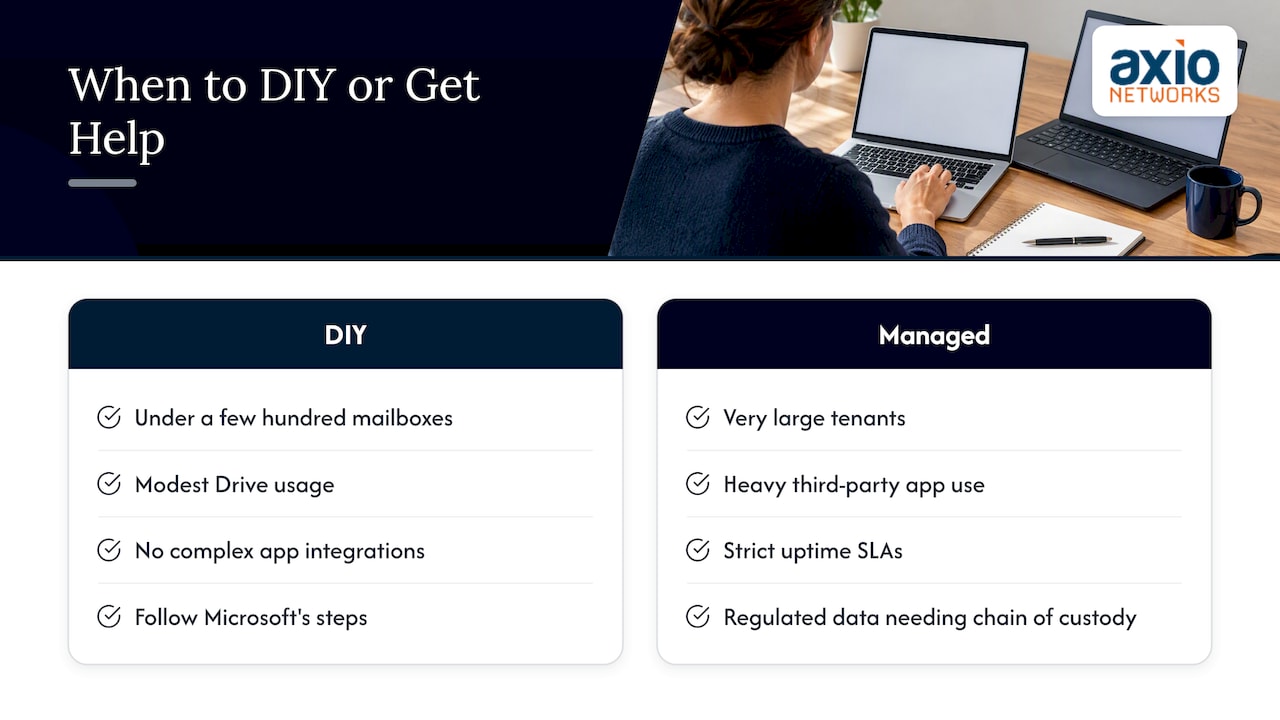
Jim O’Connell has written on IT infrastructure and migration planning topics for small and mid-sized business audiences. A straightforward migration, under a few hundred mailboxes with modest Drive usage and no complex app integrations, is well within reach for an internal IT team following Microsoft’s documented steps.
The calculation changes with scale. Very large tenants, heavy use of connected third-party apps, strict uptime service level agreements, or regulated data that needs documented chain of custody all raise the cost of a mistake well past the cost of help.
A typical managed engagement runs through five phases: an assessment of current Google Workspace usage and data volume, a pilot batch with a representative user group, the full migration in scheduled waves, a coordinated cutover, and a post-migration support window where real user issues get resolved quickly. We bring a security-first approach to every one of these phases and respond promptly when something needs attention mid-project.
What actually determines a smooth migration
Most migration guides treat Microsoft’s tools as a black box: point them at Google Workspace, run the batch, done. That framing undersells the real risk, which is almost never the tool itself. EAC and Migration Manager are reliable when the inputs are clean. The failures that eat weeks come from skipped prerequisites, like archival policies left active in Gmail, or identity mappings nobody checked before a bulk run.
The conventional advice to “run a pilot” is correct but incomplete. A pilot only earns its value if someone reviews permissions and shared-drive access for that group line by line, not just whether mail arrived. Treat the pilot as a dress rehearsal for your CSV mapping and group recreation, not a mail delivery test.
If you take one thing from this, prioritize identity and permission mapping over migration speed. A fast migration that breaks shared-drive access for a department costs more cleanup time than a slower one that gets mapping right the first time.
— Jim O’Connell
Get migration support from a local, security-first team
If your team would rather hand off the mailbox batches, Drive scans, and permission mapping than manage them alongside everyday IT work, Managed Microsoft 365 migrations from Axio Networks fold directly into flat-rate pricing with no surprise project fees.
- We scope your tenant and data volume before quoting a timeline, not after.
- Security review runs alongside the migration instead of as an afterthought.
- Post-migration support continues once users are live, not just through cutover.
Request a migration assessment and we’ll map out a phased plan built around your mailbox count, Drive usage, and compliance needs.
FAQ
How do I migrate data from one Google Workspace account to another?
Google Workspace supports admin-managed data transfer tools for moving mail, calendar, and Drive content between accounts within the same organization. For a destination outside Google Workspace, such as Microsoft 365, you would instead use the Exchange admin center’s automated migration and Migration Manager described above, not Google’s internal transfer tool.
How do I migrate my Gmail account to Office 365?
Use the automated Exchange admin center migration to move Gmail, contacts, and calendar data in a scheduled batch. You will need a Google service account, a CSV of user email addresses, and a configured migration endpoint before the batch can run.
Can I use Google Workspace and Microsoft 365 together?
Yes, a staged coexistence period using subdomain mail routing lets both platforms operate side by side during migration. This is the recommended approach for verifying a pilot group before cutting over MX records for the full organization.
What is G Suite Migration?
G Suite migration refers to moving mail, calendar, contacts, and Drive files from Google Workspace, formerly G Suite, to another platform such as Microsoft 365. Microsoft’s own migration overview documents the full sequence from domain verification through final cutover.
Sources
- Perform an automated Google Workspace migration to Microsoft 365 or Office 365 in EAC in Exchange Online | Microsoft Learn
- G Suite (Gmail API) to Exchange Online (Microsoft 365) Migration Guide – BitTitan Help Center