The IT hardware lifecycle is the path every laptop, server, switch and firewall follows in your business: planned and bought, deployed, maintained, then retired and disposed of. Managing it means tracking each device through those stages, replacing it before it becomes a security or downtime problem, and wiping its data before it leaves your hands. This guide walks through the stages, the refresh timing most businesses use, what to record, and how to budget for it.
TL;DR
- The lifecycle runs from planning and acquisition through deployment, maintenance and retirement. Skipping the planning and retirement ends is where small businesses lose money and expose data.
- Intel’s research points to a two to four-year PC refresh cycle as the cost-optimal range. Servers and network gear follow vendor support dates.
- Keep one inventory record per device: serial number, owner, location, warranty, support status and disposition.
- Wipe or destroy storage media following NIST SP 800-88 before any device is resold, donated or recycled.
- Budget for total cost of ownership, not the sticker price, and spread replacements across years instead of buying everything at once.
Table of Contents
- What the IT hardware lifecycle covers
- The stages, one by one
- How long hardware lasts
- Signs a device is due for repair, refresh or replacement
- What to track for every device
- Planning replacements without budget shocks
- Secure retirement and disposal
- Our perspective
- How Axio Networks supports the hardware lifecycle
- FAQ
- Sources
What the IT hardware lifecycle covers
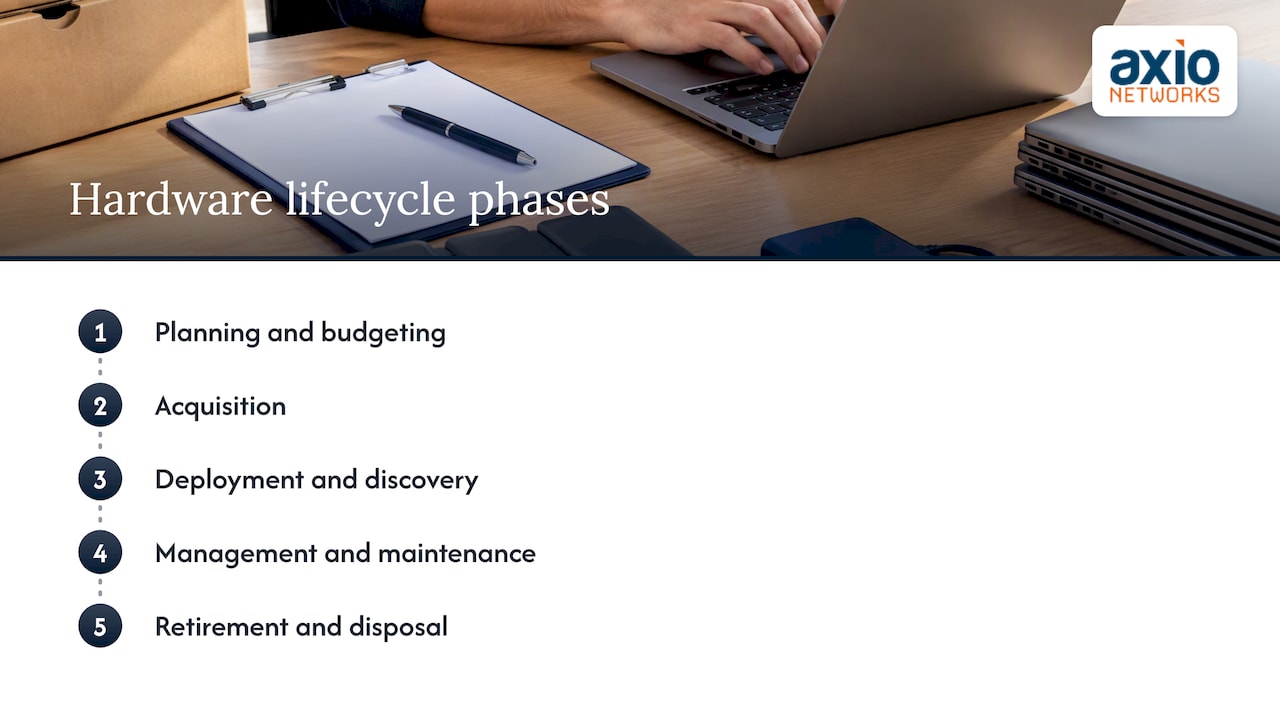
A lifecycle is the full life of a device, from the moment someone decides you need it to the moment its data is gone and its parts are recycled. Federal agencies treat this as a formal discipline. The Department of Housing and Urban Development’s IT asset management policy describes five phases: planning and budgeting, acquisition, deployment and discovery, management and maintenance, and retirement and disposal, and ties financial, contractual and inventory records together so decisions are made on real data.
Other frameworks slice it differently. A UK government toolkit on circular IT lists source, deploy, maintain, decommission, reuse and recycle as common stages. The labels differ, the logic does not: a device has a beginning you can plan, a middle you can maintain, and an end you can control.
For a company with 20 to 300 employees, the practical version is simple. Know what you own, know when each item stops being worth keeping, and have a plan for what replaces it. If you want a longer walkthrough aimed at small and mid-sized businesses, our practical guide to IT asset lifecycle management goes deeper.
The stages, one by one
1. Plan and budget
This is the stage most small businesses skip. Before buying, decide what the device must do, how long you expect to keep it, who will use it, and what it will cost over its life. The HUD policy puts planning and budgeting first for a reason: purchases made in a hurry usually cost more and fit worse.
A useful planning output is a short standard: two or three approved laptop models, one approved firewall family, one server or cloud target. Standardizing cuts support time and makes spare parts and imaging far simpler.
2. Acquire
Acquisition is more than clicking buy. It means choosing a model with a support window that matches your intended life, confirming warranty terms, and recording the purchase in your inventory the day it arrives. Buying through a single channel keeps invoices, serial numbers and warranty registrations in one place. Our IT procurement service exists for exactly this, so purchasing, configuration and records do not sit with whoever happens to be free.
3. Deploy
Deployment covers imaging, encryption, security software, user assignment and labeling. The inventory record gets its first update here: who has the device and where it lives. Every device should leave this stage already enrolled in your management and endpoint security tools, not “to be added later.”
4. Manage and maintain
This is the long middle. The IRS’s hardware asset procedures describe maintenance as inventorying, counting and tracking assets, monitoring usage and useful life, managing warranties and support contracts, and running quality reviews. In a small business that translates to patching, firmware updates, warranty claims, repair history and a periodic check that the device still matches the record.
This stage is also where proactive monitoring pays off. A drive reporting errors or a battery at its limit is a scheduled swap, not a Monday-morning outage. We explain the difference in proactive versus reactive IT support.
5. Retire and dispose
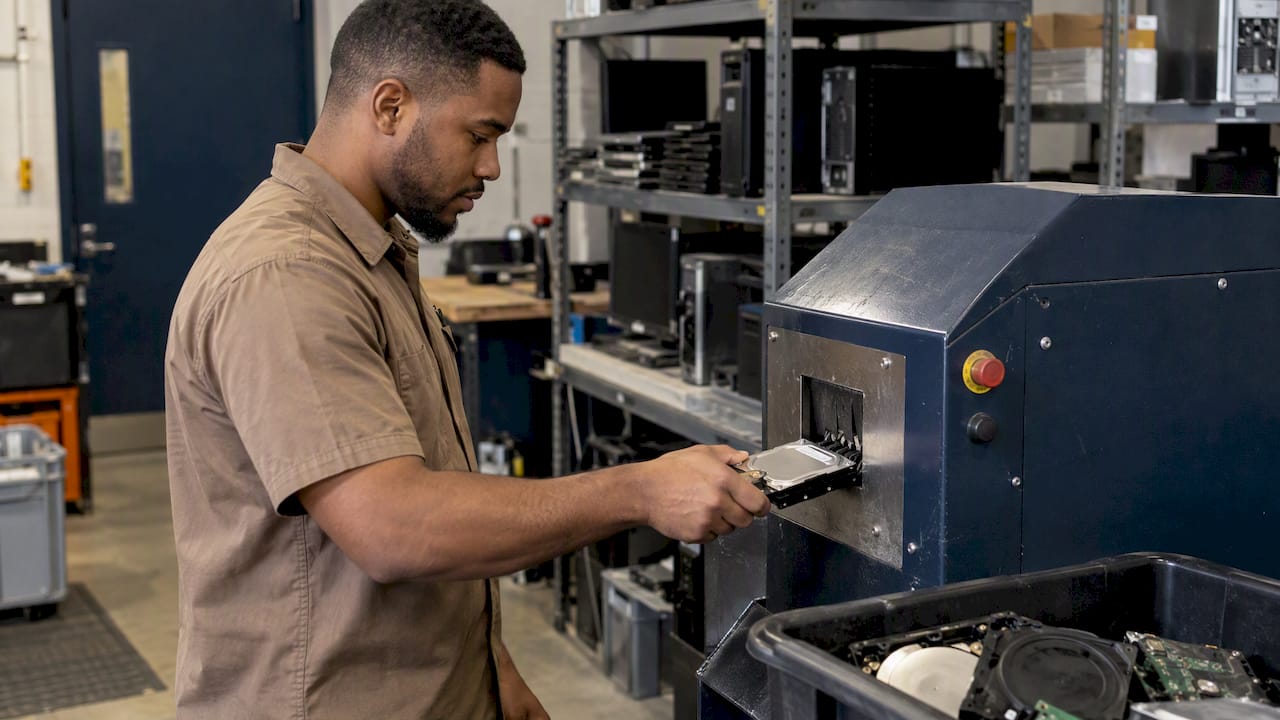
Retirement means removing the device from service, moving its data where it belongs, wiping or destroying storage, and then reselling, donating, recycling or disposing of it. It is the stage with the most legal and reputational risk, so it gets its own section below.
How long hardware lasts
There is no single life expectancy, because “useful life” depends on workload, support status and what a failure costs you. Here is a working framework you can adjust:
| Device type | Typical planning horizon | What usually ends its life |
|---|---|---|
| Office laptops and desktops | 3 to 4 years | Slower performance, battery wear, loss of operating system support |
| Servers on premises | Set by vendor support and warranty dates | End of vendor support, capacity limits, rising repair frequency |
| Firewalls, switches, access points | Set by vendor end-of-life announcements | Security updates stop, new Wi-Fi or throughput needs |
| Printers and peripherals | Run until failure, with a spare plan | Consumables cost, driver support |
The laptop and desktop range is the one with published evidence behind it. Intel’s PC lifecycle research identifies two to four years as the optimal refresh cycle for total cost of ownership, noting that keeping PCs beyond three years significantly raises support costs and security exposure. That paper dates from 2012, so treat the exact numbers as a starting point and use your own repair and ticket data to tune them. The server, network and peripheral rows are our planning guidance, not a published standard: for those, the manufacturer’s end-of-support date is the deadline that matters.
Software can end a hardware life too. Microsoft ended support for Windows 10 on October 14, 2025, and says devices that cannot run Windows 11 should either enroll in extended security updates or be replaced. Any machine that was left behind is now a lifecycle decision, not a someday item. Server operating systems work the same way, which is why we wrote about why a Windows Server end-of-support date should drive your cloud migration plan.
Signs a device is due for repair, refresh or replacement
Calendars are a guide. Evidence is better. Intel lists inadequate performance, insufficient security protection and frequent repairs as the signals that a PC needs attention. The FFIEC’s IT handbook adds a useful definition: hardware reaches end of life when it no longer supports the organization’s objectives, whether from wear, too little capacity or speed, or obsolete components.
In day-to-day terms, watch for:
- Repeat tickets from the same device. Two or three repairs in a year on one machine usually cost more than the replacement.
- Vendor support ending. No more firmware or security patches means a permanent vulnerability.
- Warranty expiry on critical gear. A server out of warranty with no spare is a risk you are choosing, not one that happens to you.
- Staff working around the device. Slow boot times, short battery life and freezing in video calls are real productivity costs.
- Incompatibility with new software. A line-of-business app or security tool that no longer installs is the clearest signal of all.
Repair when the fix is cheap, the device is inside its planned life and security support continues. Refresh when you can redeploy the device to a lighter role. Replace when support has ended or repairs are recurring.
What to track for every device
A lifecycle plan is only as good as the inventory under it. The IRS asset procedures call for a centralized record for every device, updated at receipt, assignment, relocation, repair, transfer and retirement. The fields they list translate well to a small business:
- Asset type, make and model, and serial number
- Assigned user and physical location
- Configuration, including operating system and encryption status
- Purchase date, cost and warranty end date
- Support status and vendor end-of-life date
- Maintenance and repair history
- Final disposition: resold, donated, recycled or destroyed
The payoff is the second half of that guidance: use the data to monitor useful life, cost, warranties, vulnerabilities and end-of-life dates, then schedule replacements. The FFIEC handbook recommends the same loop: keep each asset in an inventory, track vendor support announcements, verify end-of-life dates and create replacement plans. NIST’s cybersecurity center frames the purpose well: connecting physical and virtual asset information so you keep a complete picture of what exists and where it is.
A spreadsheet works for a 15-person office if someone owns it. Past that, an automated discovery tool tied to your management platform keeps the record from drifting.
Planning replacements without budget shocks
The cheapest laptop is rarely the cheapest laptop to own. Total cost of ownership includes the purchase price plus maintenance, upgrades, support contracts, electricity and downtime, along with indirect costs such as training, lost productivity and compliance risk. When you compare options, price the whole life.
Reactive replacement, meaning buying only when something breaks, is the expensive path. IEEE’s overview of ICT lifecycles notes that skipping stages or compressing planning into rip-and-replace decisions typically raises both financial and environmental cost.
A simple approach that works for most small and mid-sized companies:
- Stagger refreshes. If you have 40 laptops on a four-year cycle, plan to replace about ten per year, not forty in one quarter.
- Set a replacement reserve. Divide the cost of the fleet by its planned life and budget that amount annually.
- Replace in tiers. New hardware goes to the roles that stress it most; still-supported machines move to lighter roles.
- Align with software dates. Tie server and firewall replacements to vendor end-of-support dates, and decide early whether cloud makes sense instead of new on-premises hardware.
- Hold a small spare pool. One or two imaged, ready-to-ship laptops turn a failure into a 15-minute swap.
For a structured template, see our guide to building a smart IT refresh plan.
Secure retirement and disposal
The end of the lifecycle is where a data breach can start. A retired laptop in a closet or an unwiped server sold on a marketplace still holds client records, credentials and email.
NIST Special Publication 800-88 Revision 1 is the U.S. standard reference. It defines three sanitization levels: Clear, Purge and Destroy, chosen according to how confidential the information is and the risk involved. In plain terms:
- Clear uses logical techniques, such as overwriting, to protect against simple recovery.
- Purge uses physical or logical techniques that make recovery infeasible, even with advanced lab methods.
- Destroy makes the media unusable, for example by shredding.
A workable disposal checklist:
- Confirm the device is in your inventory and that no data on it is the only copy.
- Move or back up what the business still needs.
- Remove the device from management, directory and licensing systems.
- Sanitize the storage using the level that matches the data. Drives that held regulated or highly sensitive data deserve Purge or Destroy.
- Keep a certificate or log of the wipe with the asset record.
- Resell, donate or recycle through a vendor you have vetted.
- Mark the record as disposed, with the date and method.
If you are reusing or recycling, the EPA encourages electronics refurbishers, charitable organizations and manufacturer take-back programs, which can save money and resources. Circular approaches such as leasing, take-back and redeployment can turn end of life into a controlled process. Our article on five ways to implement secure IT asset disposition covers how to do this in a small business.
Our perspective
Most small and mid-sized businesses we meet do not have a hardware problem. They have a visibility problem. Nobody can say with confidence how old the firewall is, which laptops are out of warranty, or where last year’s retired machines went.
We build lifecycle management into managed IT because security and hardware age are the same conversation. An unsupported device is an unpatched device, and an unpatched device is an open door. That is why our approach puts security into every service we deliver, including procurement, refresh planning and disposal, rather than treating it as an add-on.
The second thing we push is predictability. A flat monthly model and a staggered refresh plan mean replacement costs show up on the budget a year ahead, not as a surprise invoice after a failure. Owners tell us that is the part they value most: knowing what next year looks like.
If you take one step this month, make it an honest inventory. Everything else in the lifecycle, from replacement dates to secure disposal, follows from knowing what you own.
Jim O’Connell
How Axio Networks supports the hardware lifecycle
If you run a Phoenix-area business without an in-house IT team, the lifecycle is easy to defer until something breaks. We take it on as part of managed IT services: inventory and monitoring, procurement and deployment, refresh planning and secure retirement, with security built into each step. Backup is part of the picture too, because a device swap should never put data at risk, and our backup and disaster recovery service covers that.
Want to know where your hardware stands? Talk to our team about a lifecycle review, and you will leave with a clear picture of what to keep, refresh or retire. Start at axionetworks.com.
FAQ
What are the stages of the IT hardware lifecycle?
A common version is planning and budgeting, acquisition, deployment, management and maintenance, and retirement and disposal. Government frameworks add reuse and recycling as explicit steps at the end. Whatever you call them, each stage should update the same inventory record.
How often should a business replace laptops and desktops?
Intel’s research identifies a two to four-year refresh cycle as the cost-optimal range, and most businesses settle on three to four years. Let repair frequency, performance complaints and operating system support adjust that number for your own fleet.
What is the difference between hardware lifecycle management and IT asset management?
IT asset management is the broader practice of tracking all assets, financial and contractual details included. Hardware lifecycle management applies it to physical devices from purchase to disposal. In practice they share one inventory and one set of records.
How do we dispose of old computers securely?
First sanitize the storage media using Clear, Purge or Destroy as NIST SP 800-88 describes, matched to how sensitive the data was. Then record the wipe, and send the hardware to a vetted reuse or recycling channel. Never hand over a device with a readable drive.
Does moving to the cloud remove the hardware lifecycle?
It reduces the server side, but laptops, firewalls, switches, access points and printers still age. Cloud migration changes what you replace, not whether you need a plan.
Sources
- Information Technology Asset Management Policy, HUD
- Hardware Lifecycle Management Toolkit, UK Circular Economy Working Group
- IRM 2.149.3 Asset Management Hardware Procedures, IRS
- FFIEC IT Examination Handbook: IT Asset End-of-Life
- IT Asset Management, NIST NCCoE
- PC Lifecycle Management, Intel
- Windows 10 support has ended on October 14, 2025, Microsoft
- What is total cost of ownership (TCO)?, TechTarget
- ICT Product and Service Lifecycles, IEEE Technology Navigator
- NIST SP 800-88 Revision 1, Guidelines for Media Sanitization
- Electronics Reuse and Recycling Directory, EPA
- Sustainable procurement strategies and policies for CIOs, TechTarget