Migrating a file server to SharePoint Online comes down to five moves: inventory and clean the data, design a library structure that fits how teams work, map permissions, pilot with a small group, then cut over once. Microsoft’s own tools handle the copying. The decisions around them (what to move, where it lands, who can open it) decide whether the project goes smoothly. For a small or mid-sized Phoenix business without in-house IT, Managed Microsoft 365 from Axio Networks is built to take that planning and the follow-up support off your plate.
TL;DR
- Clean first: remove duplicates and stale files, and shorten deep folder paths before anything is copied.
- Put team content in SharePoint libraries and individual work files in OneDrive. Do not copy the old folder tree one-to-one.
- Use Microsoft’s free SharePoint Migration Tool or Migration Manager, run a pilot, migrate in incremental passes, then cut over once.
- Plan permissions deliberately. Some Windows permission types do not carry over.
- Finish by switching off the old shares, training users, and securing external sharing.
Table of Contents
- SharePoint or a file server: which fits your business
- Understand the three places files can go
- Step 1: Inventory and clean up the file server
- Step 2: Design the SharePoint structure
- Step 3: Plan permissions before you copy
- Step 4: Choose the tool and meet the prerequisites
- Step 5: Pilot, migrate incrementally, cut over once
- Step 6: Train users and support the first weeks
- What a migration costs
- Why Phoenix businesses hand this to a managed provider
- FAQ
- Sources
SharePoint or a file server: which fits your business
A file server stores files in folders on hardware you own, reachable from the office network or a VPN. SharePoint Online stores them in Microsoft’s cloud, in document libraries that sit on top of your Microsoft 365 subscription.
Microsoft lists the benefits of Microsoft 365 file storage over local or network-only storage as anywhere access, enterprise-grade security, external sharing, real-time collaboration, versioning and better discovery. Users can still see synced files in File Explorer or Finder through OneDrive Files On-Demand, so the daily experience stays familiar.
Gartner’s guidance is that SharePoint, Teams and OneDrive are natural replacements for on-premises file shares, and that you should assess each file use case to pick the right cloud service. That assessment is your first step. Ordinary office documents, spreadsheets, PDFs and project folders fit SharePoint well. Specialized workloads, such as large design files or software that expects a mapped drive, deserve a closer look before you commit them to a library.
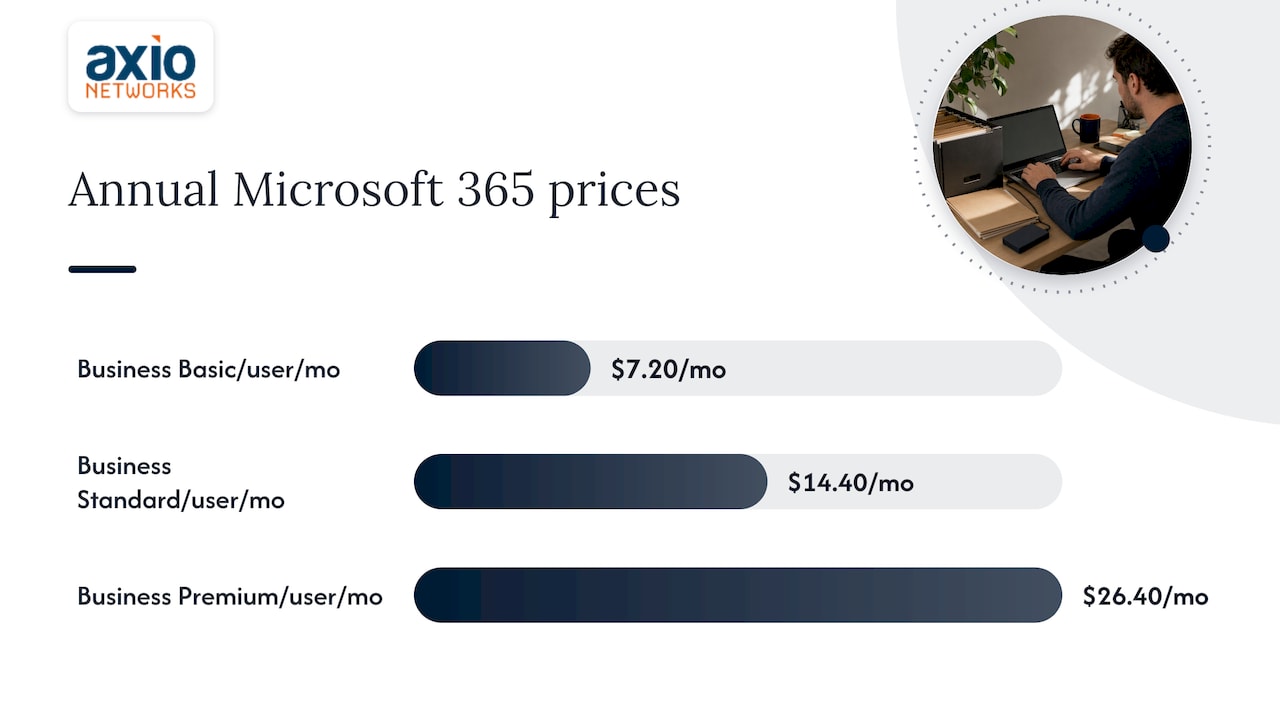
The cost side is simple to check. A 2026 pricing guide reports Microsoft 365 plans at $7.20 (Business Basic), $14.40 (Business Standard) and $26.40 (Business Premium) per user per month on annual commitment. Microsoft revises its prices, so confirm them on Microsoft’s live US pricing page. If you already pay for Microsoft 365 email, SharePoint is typically already in your plan, and retiring the server removes hardware, power and refresh costs.
Understand the three places files can go
Most failed migrations start with one mistake: copying every folder into one giant SharePoint site. Microsoft’s guidance separates the destinations:
- SharePoint is the shared-file location for teams and departments.
- OneDrive is intended for personal work files.
- Teams files are stored in the SharePoint site connected to that team.
So a user’s “My Documents” or home drive belongs in their OneDrive, while the Accounting, Projects or HR shares belong in SharePoint libraries. If you want a plain-language comparison for your staff, our guide on the difference between OneDrive and SharePoint covers it, and this overview of OneDrive versus other cloud storage helps explain why a single personal-storage tool is not a replacement for shared team libraries.
Step 1: Inventory and clean up the file server
You cannot plan a move you have not measured. Before touching a migration tool, record:
- Total data volume, plus the number of files and folders
- File extensions in use
- Owners of each share
- Who has permissions on each folder
A 2026 migration guide recommends removing duplicates and stale content, archiving anything needed for legal or compliance reasons, and flattening folders deeper than five levels. Deep trees are more than an annoyance. Microsoft’s service limits state that the entire decoded file path, including the file name, cannot exceed 400 characters, and the same page sets a 250 GB limit per uploaded file. Long project folder names nested six levels down are where those limits bite.
A practical rule of thumb: ask each department head to name what they actually use. Anything untouched for years is a candidate for archiving rather than migrating. Archive it somewhere backed up, not nowhere. Our guide to building a backup and disaster recovery plan shows what that safety net should look like.
Where this step goes wrong
- Cleanup is skipped because “the tool will just copy everything”, and the clutter follows you to the cloud.
- Nobody knows who owns an old share, so nobody approves deleting it.
- Regulated records (financial, health, client contracts) get deleted instead of archived.
Step 2: Design the SharePoint structure
Microsoft recommends documenting current user journeys, collaboration practices, file locations and sharing processes, then turning them into pilot test cases. In plain terms: watch how people really work before you decide where files go.
A workable structure for a 25 to 150 person company usually looks like this:
| Source on the file server | Destination | Why |
|---|---|---|
| Personal home drives | Each user’s OneDrive | Private work files, follows the user |
| Department shares (Accounting, HR, Sales) | One SharePoint site per department, with libraries for sub-areas | Shared ownership and permissions |
| Project or client folders | A library per project or client, or a Teams-connected site | Access can be granted and removed per project |
| Company-wide templates and policies | A communication site everyone can read | One controlled copy |
| Old archives | Archive library or separate backup | Keeps active libraries lean |
Keep it shallow. Use libraries and metadata columns (such as client, year or document type) rather than five levels of nested folders. Name sites for the work they support, not for the server they came from.
Step 3: Plan permissions before you copy
Permissions are the part owners worry about, and with reason. Microsoft’s migration guide says that file and folder structure, user-level permissions and metadata migrate, but embedded URLs and explicit-deny permissions do not, and advanced NTFS permissions are removed. The same guide states that the most restrictive applicable share or NTFS permission determines the resulting permission level.
What that means for you:
- Expect your permissions to be simplified. Windows file servers often accumulate layered, per-folder exceptions over the years. SharePoint works best with a few groups per site (owners, members, visitors).
- Rebuild access by group, not by person. Create a group for each department or project and assign it to the site.
- Watch deny rules. If a folder relied on an explicit deny, decide what the replacement access model is before cutover.
- Fix hard-coded links. Shortcuts, spreadsheets and documents that point to server paths will not follow the files.
This is also the moment to apply the principle of least access. The migration is the one time every folder gets reviewed, so use it to remove old employees, shared logins and “Everyone” permissions. Our guide to securing SharePoint and OneDrive for file sharing covers the sharing settings to review.
Step 4: Choose the tool and meet the prerequisites
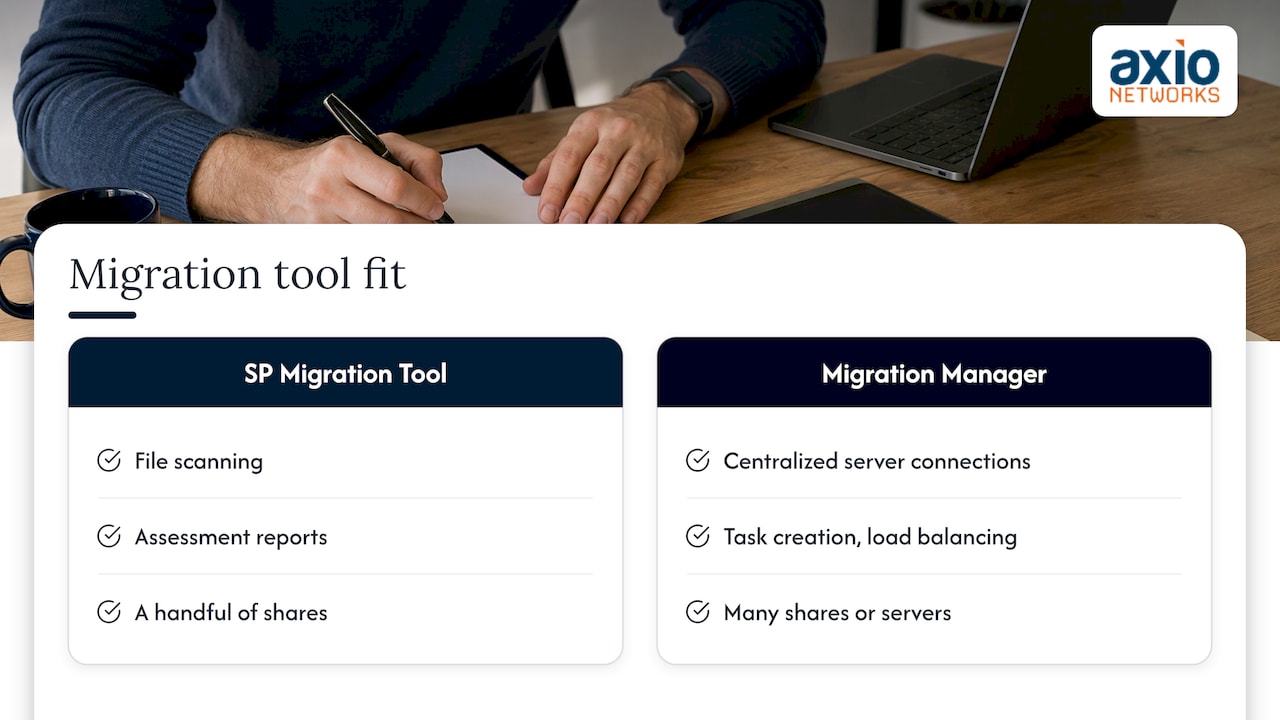
Microsoft provides two free options for file shares. According to its migration guide, you use the SharePoint Migration Tool to scan files and review assessment reports, while Migration Manager gives you centralized server connections, task creation and load balancing.
For Migration Manager, Microsoft lists these requirements: the source server must support SMB 2.0 or higher, you need source credentials with read access, and a Global Administrator or SharePoint/OneDrive Administrator must handle the destination. It works through installed agents, supports prescans and exclusions, and reports progress per task.
For a handful of shares, the Migration Tool is enough. For many shares or multiple servers, Migration Manager’s agents are easier to manage. Either way, run the scan first and read the assessment report: it flags the invalid names, oversize files and path-length problems from Step 1 that you would otherwise find in the middle of a migration.
The tools copy files, but the decisions around them are judgment calls: which share maps to which site, which groups get which access, which files stay behind. That is where Axio Networks’ Cloud Migration service fits for businesses that do not have an IT person on staff.
Step 5: Pilot, migrate incrementally, cut over once
Microsoft recommends a small representative pilot to validate performance, communications, process and user feedback before the wider migration. Pick one department with a mix of power users and casual ones, ideally not the busiest team during its busiest week.
A sequence that works:
- Pilot. Migrate one share. Have the pilot group do their real jobs for a week: open, edit, co-author, share with a client, search for something old.
- Fix what the pilot found. Adjust structure, permissions and instructions.
- Incremental passes. Copy the remaining shares in the background while people keep working on the server. Each pass picks up changes made since the last one.
- Single cutover. Microsoft recommends one cutover for all users. On the chosen day, make the old shares read-only or disable them and point everyone to SharePoint or OneDrive.
- Final pass and verification. Run a last incremental pass just before cutover, then spot-check file counts and a sample of documents.
A Friday evening cutover with a Monday-morning support plan is a common choice for small offices, because it gives you the weekend to catch problems before the workweek.
Keep the old server for a while
Do not wipe the server on cutover day. Keep it powered off or read-only, and backed up, for a defined period while people confirm nothing is missing. Then decommission it.
Step 6: Train users and support the first weeks
Microsoft’s guidance is to communicate the timeline and impact, train users and the helpdesk, and prepare for possible downtime. Most “the migration broke it” tickets are really “I cannot find my folder” tickets.
Cover these basics in a 30-minute session or short guide:
- Where each team’s files now live, and the new link to each site
- How to sync OneDrive and SharePoint files to your computer so they appear in File Explorer
- How to share with someone outside the company without emailing attachments
- How to organize files in OneDrive
- Who to call when something is missing
Avoid the temptation to sync every library to every laptop. Sync only what each person needs.
What a migration costs
Costs vary by data volume, the state of your permissions and how much restructuring you want. One 2026 pricing guide estimates that small-business implementations run roughly $10,000 to $30,000, and calls these market estimates rather than Microsoft list prices. Treat any such range as a reference point and ask for a scoped quote. The largest swing factors are cleanup effort, number of distinct permission sets and how many users must be trained.
Why Phoenix businesses hand this to a managed provider
The migration is a one-time project, but the environment it creates needs running afterward: licenses, sharing settings, backups, device security and user support. Axio Networks offers Managed Microsoft 365, Cloud Migration and Backup & Disaster Recovery as part of one flat-rate relationship, with security built into every service and a local team that knows Phoenix-area businesses. Our average response time is under 30 minutes.
For the file-storage side specifically, see our cloud file storage and sharing page.
Our perspective
A file server migration is an opportunity most businesses waste. The easy path is to lift the old folder tree into the cloud and call it done. We think the better path is to treat it as the one moment you can fix permissions, retire stale data and decide how the company should share files for the next ten years.
Security belongs in that design from the first day, not as a later add-on. Who can share externally, which devices can sync company files, and how files are backed up are all decisions made during the move. That is why we build security into every managed and project service we deliver, and why our flat-rate model matters here: you should not have to hesitate to ask a question about a library because the clock is running.
Our local team works with Phoenix-area small and mid-sized businesses that do not have, or do not want, a full in-house IT department. For them, the goal is simple: files that are easy to find, hard to lose and safe to share.
Jim O’Connell
FAQ
Can I migrate everything from my file server to SharePoint?
Most office documents, yes. Files must stay within SharePoint’s limits, including 250 GB per file and a 400-character path. Applications that expect a mapped network drive should be assessed individually before you move their data.
Will my folder permissions carry over?
User-level permissions and folder structure migrate, but explicit-deny permissions and embedded URLs do not, and advanced NTFS permissions are removed. Plan to rebuild access by group on each SharePoint site.
Should personal folders go to OneDrive or SharePoint?
Personal home drives belong in OneDrive, and team or department content belongs in SharePoint libraries. Teams files are stored in the SharePoint site behind the team, so one team workspace does not need a separate copy.
How long does a migration take?
It depends on data volume, bandwidth and cleanup. The incremental approach lets copying run in the background while people keep working, so the visible disruption is the cutover window and the first week of support, not the whole copy.
Sources
- Migrate file shares to SharePoint and OneDrive (Microsoft Learn)
- Overview: Migrate your file shares to Microsoft 365 (Microsoft Learn)
- Identify business requirements for SharePoint and OneDrive (Microsoft Learn)
- Intro to file collaboration in Microsoft 365 (Microsoft Learn)
- SharePoint limits (Microsoft Learn)
- When to Migrate Your On-Premises File Shares to Microsoft 365 (Gartner)
- How to Migrate a File Share to SharePoint Online
- SharePoint Licensing and Pricing Guide 2026