Wi-Fi 6 is worth it for a business when your problem is many devices sharing the wireless network, not a single slow connection. It is a capacity and consistency upgrade, and it only delivers when the access points, switches, cabling and placement are planned together. At Axio Networks we design and install business wireless networks around the Phoenix metro area, and the pattern is consistent: the offices that get the most from Wi-Fi 6 treat it as a network project, not a box swap.
TL;DR
- Wi-Fi 6 (802.11ax) is built to serve many devices at once more efficiently. The gain shows up in busy offices, not in a single-device speed test.
- The headline 9.6 Gbit/s figure is a theoretical maximum. Real throughput depends on your devices, channel width, walls and how many people share each access point.
- Your existing laptops and phones will still connect, but they only get Wi-Fi 6 benefits if they support 802.11ax too.
- Switches, cabling, the internet link and access point placement can cap the result, so assess them before you buy.
- Upgrade when you have growing headcount, many connected devices, video calls or wireless-first work. A small, light-use office may gain little.
Table of Contents
- What Wi-Fi 6 actually is
- What speeds you can realistically expect
- Will your current devices work?
- Wi-Fi 6 versus Wi-Fi 6E
- What to assess before you upgrade
- When an upgrade makes sense, and when it can wait
- A worked example
- Where Axio Networks fits
- Our perspective
- FAQ
- Sources
What Wi-Fi 6 actually is
Wi-Fi 6 is the marketing name for the IEEE 802.11ax standard. It works on the 2.4 GHz and 5 GHz bands that your current Wi-Fi already uses, according to Aruba’s deployment guide. If you want a refresher on what those two bands do, our guide to 2.4GHz versus 5GHz Wi-Fi covers it.
The important changes are about sharing airtime, not raw speed:
- OFDMA lets one access point split a channel and talk to several devices in the same transmission, instead of serving them strictly one after another. Think of a delivery truck that carries parcels for ten addresses rather than making ten separate trips.
- MU-MIMO lets the access point send data to multiple devices at once using multiple antennas.
- Target Wake Time (TWT) lets supported devices schedule when they wake up to communicate, which can reduce battery use on phones, tablets and IoT sensors.
The Wi-Fi Alliance’s Dave Chen frames Wi-Fi 6 in the enterprise as an efficiency and device-density upgrade that supports real-time applications, IoT and edge computing, rather than only faster individual downloads. That framing is the right one for a business owner: the question is not how fast one laptop can go, but how well the whole office holds up at 10:30 on a Tuesday when everyone is on a video call.
What speeds you can realistically expect
You will see “up to 9.6 Gbit/s” on spec sheets. AWS’s Wi-Fi 6 explainer gives that as the theoretical maximum, against 3.5 Gbit/s for Wi-Fi 5, and notes that reaching it depends on devices, configuration and environmental factors. It is an aggregate lab number, not what one laptop will see at a desk.
Two things matter more in practice:
- Wi-Fi is a shared medium. Cisco’s throughput testing guide explains that devices on the same access point divide the available throughput, and that contention and collisions reduce performance as the client count rises. It also warns that a device’s data rate is not the same as the throughput you will get.
- Prediction is hard. TechTarget’s Lee Badman points out that expected Wi-Fi performance depends heavily on network design and on the mix of older client devices, which tempers headline claims.
So set the expectation correctly: a well-designed Wi-Fi 6 network should feel steadier under load, with fewer stalls when many people connect, rather than dramatically faster on a quiet day.
What the best test data shows
The most useful evidence for a busy office is Intel’s own IT department testing in a dense office environment. In its November 2021 report, Wi-Fi 5 performance degraded sharply beyond 15 users per access point and failed at 20. The full-featured Wi-Fi 6 configuration supported 25 users with 20% overall throughput degradation. Latency rose by a factor of 3.5 on Wi-Fi 6 versus 14 on Wi-Fi 5 in the tested scenarios.
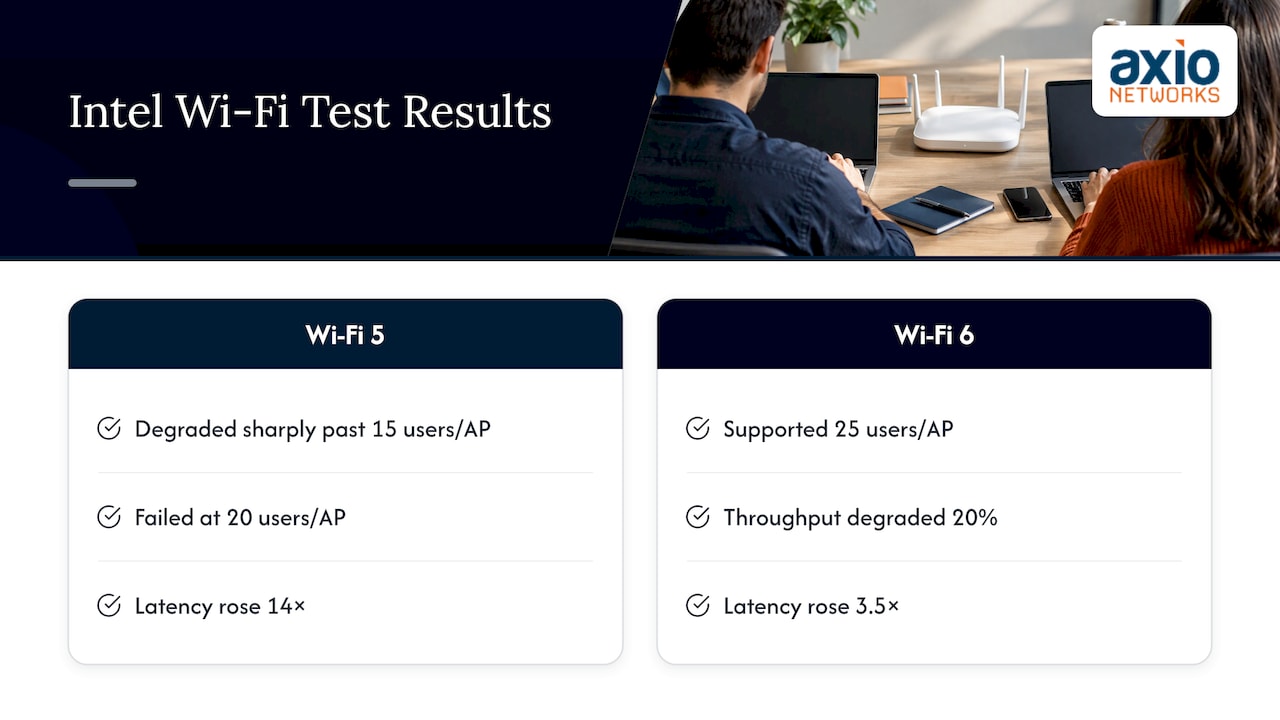
Those are results from one controlled study, not guarantees for your suite. But they show where the benefit sits: crowded access points. If no access point in your office is ever near 15 active users, the gain will be smaller.
Will your current devices work?
Yes. Wi-Fi 6 equipment is backward compatible with earlier Wi-Fi generations, and a Tolly best-practices paper on Wi-Fi 6 migration notes it can be introduced into an existing network. Nothing in your office stops working the day new access points go in.
The catch is on the client side. Aruba’s guide states that Wi-Fi 6 features need compatible client devices to realize their benefits, and AWS adds that devices need 802.11ax support to use features like OFDMA and TWT. A fleet of older laptops, handhelds and printers will connect, but they will behave like the older devices they are.
That shapes your plan:
- Check which laptops, phones, tablets and scanners support Wi-Fi 6. Anything bought in the last few years usually does, but confirm the model.
- Add Wi-Fi 6 support to your normal hardware refresh cycle, so new machines arrive ready.
- Do not expect old devices to improve. They may still benefit indirectly, because newer devices use less airtime and leave more for everyone else.
Wi-Fi 6 versus Wi-Fi 6E
Wi-Fi 6E extends Wi-Fi 6 into the 6 GHz band for more channel space. It is a separate decision. BizTech Magazine’s 2024 article on small businesses and Wi-Fi 6E notes that coverage at the higher frequency can be shorter, which may mean more access points. That caveat belongs to 6E, not to Wi-Fi 6 in general. For most offices, the first question is Wi-Fi 6 with sound design; 6E is worth raising when you have very dense areas such as a training room or call center.
What to assess before you upgrade
The most common mistake is replacing access points and leaving everything behind them untouched. A bottleneck anywhere on the path limits what users feel. TechTarget’s rollout guidance advises reviewing the internet service, cabling from router to access points, switching and access point placement.
Use this checklist.
1. Internet connection
Wi-Fi only distributes the bandwidth you have. If the office’s internet link is saturated, new access points will not fix it. Compare your actual peak usage with what you pay for.
2. Switches and ports
Some Wi-Fi 6 access points can exceed 1 Gbps on the wireless side. BizTech’s article cautions that faster access points do little if you are not saturating your existing 1-Gbps switching links, so measure before you pay for multigigabit switching. Where traffic really does exceed that, multigigabit ports on the access switches become part of the plan. Cisco’s campus design guidance treats it as an end-to-end system, where uplinks and power over Ethernet (PoE) capacity can become the new constraint.
PoE matters in particular. Newer access points can draw more power than older ones, so check that your switches can supply it to every access point.
3. Cabling
Old or poorly terminated cable is a hidden cause of slow Wi-Fi. If runs are marginal, the cable is the first thing to fix. Our comparison of Cat6 and Cat6A for small businesses explains which grade suits which distances and speeds.
4. Access point placement and coverage
AWS advises that deployment planning should prioritize populated areas rather than treating Wi-Fi 6 only as a coverage-range project. Put access points where people actually sit and work, not just where a cable happens to end. Walls, glass, kitchens and warehouse racking all change the picture, which is why a walk-through and a proper layout beat guessing. Our practical guide to wireless network design for offices goes through the layout decisions.
5. Security and guest access
A wireless refresh is the right moment to separate staff, guest and device traffic and to review how access is controlled. Our walkthrough on zero trust for office guest Wi-Fi shows how to keep visitors off your internal systems.
6. Management
Wi-Fi that nobody monitors drifts. Channel conflicts appear, firmware falls behind and a failed access point goes unnoticed until staff complain. Decide who watches the network after installation.
When an upgrade makes sense, and when it can wait
Intel’s dense-office results and AWS’s guidance point the same way: Wi-Fi 6 pays off most where many users and devices compete for the same airtime.
Upgrade soon if:
- Video calls drop or stutter when the office fills up.
- Headcount or device count has grown since the network was installed.
- Staff work wirelessly all day, with no wired desk connection.
- You run many connected devices: handhelds, cameras, sensors, point-of-sale terminals, smart displays.
- Your access points are several years old and no longer well supported.
It can wait if:
- You have a handful of users, light usage and no complaints.
- Most devices are wired desktops.
- The real problem is the internet service or a few dead spots, which a design fix can solve first.
If you are unsure, our list of five signs it is time to upgrade your business network is a quick way to check, and our piece on Wi-Fi performance and productivity covers the everyday causes of slow wireless.
A worked example
Take a 30-person office in a single floor plan with two older access points, a mix of laptops and phones, and daily video meetings. Staff complain that calls break up in the afternoon.
The tempting fix is to buy two Wi-Fi 6 access points and swap them in. A better sequence is:
- Count active devices per access point at peak. With 15 or more people on one unit, you are in the range where Intel’s testing saw older Wi-Fi degrade.
- Check the switch ports and PoE budget feeding the access points.
- Test the cable runs to each access point location.
- Redraw the layout, probably with a third access point at a lower power setting, so each unit serves fewer people.
- Confirm that the newest laptops support Wi-Fi 6 and schedule older ones for replacement.
The result is a network where the load is spread and each access point is working within comfortable limits. The Wi-Fi 6 radios help, but the design does most of the work.
Where Axio Networks fits
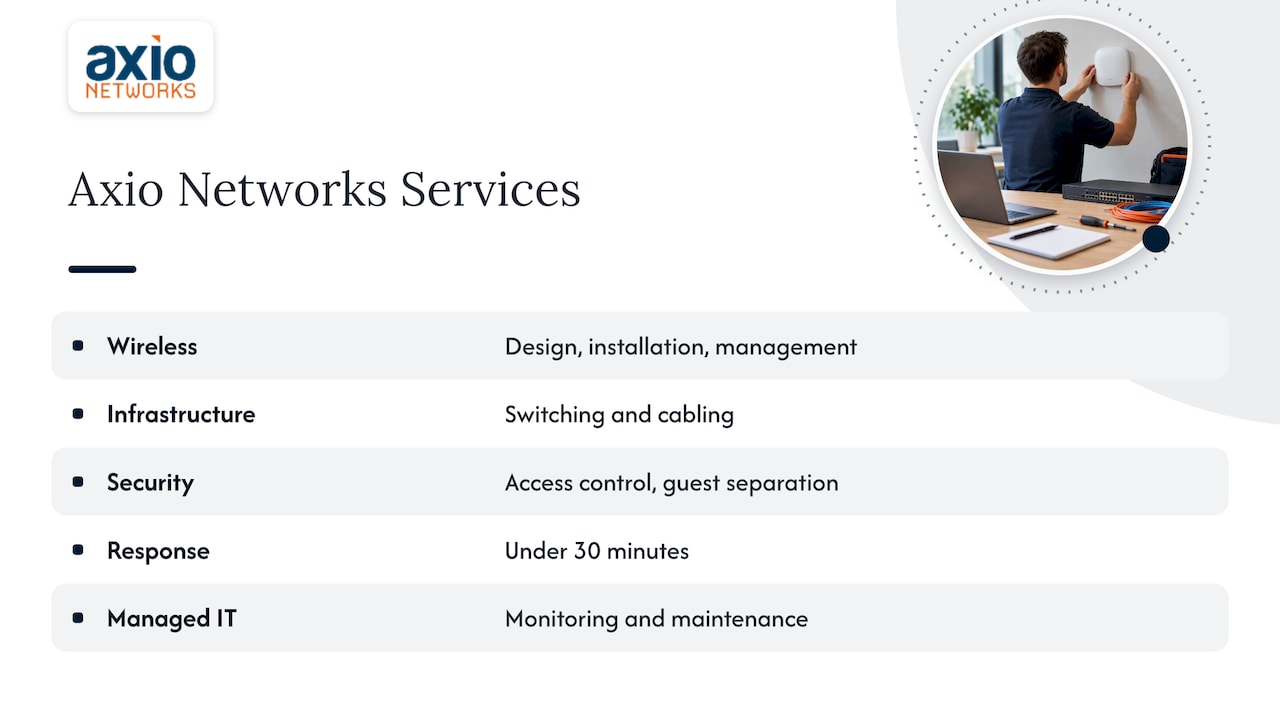
Wi-Fi 6 touches wireless, switching, cabling, security and ongoing monitoring, so it rewards having one team responsible for all of it. Our business wireless networking service covers design, installation and wireless management, and our network and infrastructure work covers the switching and cabling underneath it. Security is built into every service we deliver, so access control and guest separation are part of the design from day one, not added afterward.
We work with small and mid-sized businesses across the Phoenix metro area, with a local team and flat-rate pricing, so network costs stay predictable. Our average response time is under 30 minutes, which matters when a wireless problem stops people from working. If you would rather not run the network yourself, managed IT services keep it monitored and maintained after the upgrade.
If you are weighing a Wi-Fi 6 upgrade, talk to us about wireless and network infrastructure for your office. We will start with how your people use the network, not with a product list.
Our perspective
Most Wi-Fi complaints we hear are not about the standard. They are about how the network was planned. An office adds people, laptops and phones over the years, and the original access points are asked to carry more than they were ever laid out for.
Wi-Fi 6 is a good answer to that problem, because it is built to share airtime among many devices. But the radios are one piece. Switch ports, power, cabling, placement and security all decide what your staff experience, and we would rather design them as one system than sell you a faster access point and hope.
That is also why we build security into the network from the start. A wireless upgrade is the natural moment to separate guests from staff, tighten access and put monitoring in place. Done together, it costs less and leaves you with fewer surprises than fixing each piece separately.
For a business without an in-house IT team, the strongest approach is a local partner who designs the network, installs it, watches it and answers quickly when something changes. That is what we aim to be for our clients across the Phoenix area.
Jim O’Connell
FAQ
Do I need new devices to use Wi-Fi 6?
No, older devices still connect because Wi-Fi 6 is backward compatible. However, features such as OFDMA and Target Wake Time only work with devices that support 802.11ax, so benefits grow as you replace older laptops and phones over time.
Is Wi-Fi 6 really faster?
The 9.6 Gbit/s figure is a theoretical aggregate maximum, not what one device will see. The practical gain is more consistent performance when many devices share an access point, which is where Intel’s tests showed the clearest difference.
Do I need new switches and cabling?
Often you need to check them, not replace them. If your wired links are not saturated, standard gigabit switching may be enough. Where access points will push past 1 Gbps, or where power over Ethernet is short, switch upgrades and cable testing belong in the plan.
How many access points does my office need?
It depends on layout, building materials and how many people work in each area, not on square footage alone. Plan around where people sit and how many devices each access point will serve, and have the layout checked on site before buying hardware.
Should I choose Wi-Fi 6 or Wi-Fi 6E?
For most offices, a well-designed Wi-Fi 6 network is the starting point. Wi-Fi 6E adds the 6 GHz band, which can help in very dense areas, but its shorter range may mean more access points, so it is worth discussing during design.
Sources
- Aruba Wi-Fi 6 Networks Deployment Guide
- Wi-Fi 6 in the enterprise: We’re in a new wireless era (Wi-Fi Alliance)
- What is Wi-Fi 6? 802.11ax Wireless Explained (AWS)
- Validate and Test Wi-Fi 6/6E and Wi-Fi 7 Wireless Throughput (Cisco)
- 5 benefits of Wi-Fi 6 for enterprise networks (TechTarget)
- IT@Intel: Wi-Fi 6, The Advantages Are Real
- Best Practices for Wi-Fi 6 Migration (Tolly)
- What Small Businesses Should Know Before Adopting Wi-Fi 6E (BizTech Magazine)
- Wi-Fi 6 rollout requires careful review of network devices (TechTarget)
- Campus LAN and Wireless LAN Solution Design Guide (Cisco)