A user mailbox belongs to one person, has its own sign-in and always needs a license. A shared mailbox belongs to a role or a team, such as info@ or support@, and several people open it with their own credentials. A shared mailbox needs no license of its own as long as it stays under 50 GB and no one signs in to it directly. That is the short answer. The details below decide which one fits each address in your business, and where each one can bite you.
TL;DR
- Use a user mailbox for a person who needs their own login, calendar, and storage. It always needs an Exchange Online license.
- Use a shared mailbox for addresses several people monitor, like info@, billing@ or the front desk. Microsoft says it needs no license under 50 GB.
- Keep shared mailboxes to about 25 users. Past that, expect trouble, or look at a different tool.
- When an employee leaves, converting their mailbox to shared preserves their email without paying for a seat. Never delete the underlying account afterward.
- Shared mailboxes are not a compliance archive. Users with access can delete messages.
Table of Contents
- What each mailbox type is
- Side-by-side comparison
- Shared mailbox licensing, in plain terms
- Security: the part people skip
- When to choose which
- How to convert a user mailbox to shared
- Permissions: Full Access, Send As and Send on Behalf
- Perspective: how we set this up for Phoenix-area businesses
- Common mistakes to avoid
- Who sets this up for you
- FAQ
- Sources
What each mailbox type is
User mailbox
A user mailbox is tied to one identity: one username, one password, one set of multifactor prompts, one calendar, one OneDrive and so on. Your office manager’s mailbox is a user mailbox. So is the owner’s. It always needs an Exchange Online license, either through a Microsoft 365 plan or as a standalone Exchange plan.
Shared mailbox
A shared mailbox is a mailbox that represents a department or function rather than a person. Microsoft describes the typical uses as company information addresses, support addresses and reception or front-desk mailboxes, in its guide to shared mailboxes in Microsoft 365.
When someone in the group replies, the message appears to come from the shared address, not from the person who typed it. Customers see “Support,” not “Dana.” If Dana is out, anyone else with access can pick up the thread.
That is the real value. Without a shared mailbox, small businesses tend to hand out one password to the info@ account. Everybody knows it, nobody can say who changed what, and when someone leaves, the password either gets changed and forgotten or never gets changed at all.
Side-by-side comparison
| User mailbox | Shared mailbox | |
|---|---|---|
| Represents | One person | A role, team or address |
| License | Exchange Online license required | None under 50 GB; Exchange Online Plan 2 above 50 GB |
| Direct sign-in | Yes | No, and it should be blocked |
| How people open it | Own login | Added to their Outlook through delegated permissions |
| Recommended users | One | Up to about 25 |
| Own OneDrive, Teams, apps | Yes, with the right plan | No |
| Sends as | The person | The shared address (Send As) or on behalf of it (Send on Behalf) |
| Good for | Employees | info@, sales@, support@, billing@, reception, former-employee mail |
Shared mailbox licensing, in plain terms
Licensing is why most people search for this topic, so here is the careful version.
- Under 50 GB: a shared mailbox does not need a license. Over 50 GB, it needs an Exchange Online Plan 2 license.
- Online archive: if you want an archive on a shared mailbox, it needs a license too. One guide says Exchange Online Plan 1 covers the archive; confirm against Microsoft’s current documentation before you buy.
- The people who use it still need their own licenses. The saving is on the mailbox, not on the humans.
What does a license cost? At the time of writing, Microsoft lists Exchange Online Plan 1 at $4.00 per user per month and Plan 2 at $8.00, billed yearly. Prices change, so check that page before budgeting.
A quick worked example. A 15-person company has info@, billing@, support@ and a scheduling inbox. As user mailboxes, that is four extra seats. On Plan 1 pricing that would be $16.00 per month, or $192.00 per year, for four addresses that no one needs to sign in to. As shared mailboxes under 50 GB, the mailbox cost is zero. It is not huge money, but it adds up with every role address you accumulate, and it is the wrong reason to keep a shared password around.
The license trap
If you assign a license to a shared mailbox, it can be signed into directly. A Microsoft support answer notes that licensed shared mailboxes can log in through Outlook on the web and the Outlook client, which is expected behavior. Teams sometimes do this to get around a limitation, and in the process they re-create the shared-password problem. If you license a shared mailbox, you should have a reason, and a note explaining why.
Security: the part people skip
A shared mailbox does not have its own working credentials. Behind it sits an account object that Microsoft expects to stay disabled for sign-in. Access happens through your own account, so your multifactor authentication, conditional access rules and sign-in logs still apply to you.
That is better than a shared password in every way that matters:
- You can see who has access and remove one person without touching anyone else.
- Nobody needs to know a password, so there is nothing to leak or reuse.
- Departures are cleaner. Remove the person’s permissions, and the shared mailbox keeps working.
One caution from the research: a shared mailbox is not an archive. People with Full Access can delete messages. If you work under a regulation that needs strict retention (health care, financial services, legal holds), talk to your IT provider about retention policies and archiving before you route regulated email through one.
For the broader picture on locking down email, see our Microsoft 365 email security checklist and security settings every business should enable.
When to choose which
Choose a shared mailbox when:
- Two or more people watch one address (info@, support@, quotes@, careers@).
- You want replies to come from the role, not a person.
- Coverage has to survive vacations and turnover.
- You do not need the address to run its own apps or sign in.
Choose a user mailbox when:
- One person owns the account and needs their own calendar, files and Teams presence.
- The account needs to authenticate from other systems. A Microsoft Q&A answer states that shared mailboxes cannot be used for SMTP AUTH client submission. A scanner, CRM or line-of-business app that sends mail through SMTP AUTH normally needs a licensed account or another sending method.
- You expect the mailbox to exceed 50 GB and you would rather plan for a license from the start.
- More than about 25 people would need access.
Shared mailbox, group or distribution list?
These get confused constantly. Microsoft’s comparison of group types is the reference, and the practical split is:
| Need | Best fit |
|---|---|
| Several people reading and answering one address, with shared sent items | Shared mailbox |
| Broadcasting one message to many recipients | Distribution list |
| Team collaboration with files, a planner and Teams | Microsoft 365 Group |
If the question is “who answers customers?”, it is a shared mailbox. If it is “who gets the all-staff note?”, it is a distribution list.
How to convert a user mailbox to shared
This is the most useful trick in the whole topic, especially for departing employees. You keep the mail and stop paying for the seat.
- Check size. The mailbox must be under 50 GB, or you will need Exchange Online Plan 2 on it.
- Leave the license on for the conversion. The user mailbox needs an Exchange Online license before you convert it.
- Convert. In the Exchange admin center, find the mailbox and choose the convert to shared option. The Microsoft 365 admin center and PowerShell also work.
- Verify. Run
Get-Mailboxand check that the type reads SharedMailbox. - Grant access. Give the right people Full Access, plus Send As or Send on Behalf if they need to reply.
- Block sign-in for the underlying account if it is not already blocked.
- Remove the license, if the mailbox is under 50 GB and you do not need an archive.
Two warnings. First, the account anchors the mailbox, so do not delete it, even when you no longer need the mailbox, or you risk breaking it. Second, if the former employee’s email also feeds other services (a CRM, a vendor portal), update those before you convert.
We walk through the delegation side in how to share and delegate mailboxes in Outlook.
Permissions: Full Access, Send As and Send on Behalf
Microsoft expert Jaap Wesselius, writing on Practical365, frames a shared mailbox as an identity users act through, rather than a person’s own account. His explanation of shared mailbox permissions is worth a read. The three permissions that matter:
- Full Access: open the mailbox and read, move and delete mail.
- Send As: replies show the shared address only, as though the role itself wrote it.
- Send on Behalf: replies show the person’s name “on behalf of” the shared address.
For customer-facing addresses, Send As is usually what owners want. For internal mailboxes where accountability matters, Send on Behalf shows who answered.
To audit who has access, the GUI may not show everything. Administrators use Exchange Online PowerShell, with Get-MailboxPermission to list delegates. A quarterly review pays off, since access has a habit of outliving the project or person that needed it.
Rules and automatic replies
Rules on a shared mailbox are not obvious. Users who have Full Access can add the mailbox as a separate profile in Outlook and make rules there, or an admin can use PowerShell, where New-InboxRule takes a Mailbox parameter to target the shared identity. Plan that setup once, document it, and you save yourself the confusion later.
Perspective: how we set this up for Phoenix-area businesses
In our experience, the shared mailbox question is rarely about the mailbox. It is about whether a business still runs on a shared password. We see small teams where info@ has been signed in on three desktops and a phone for years, the password is in a sticky note, and a former employee still knows it. That is a security problem that happens to look like an email problem.
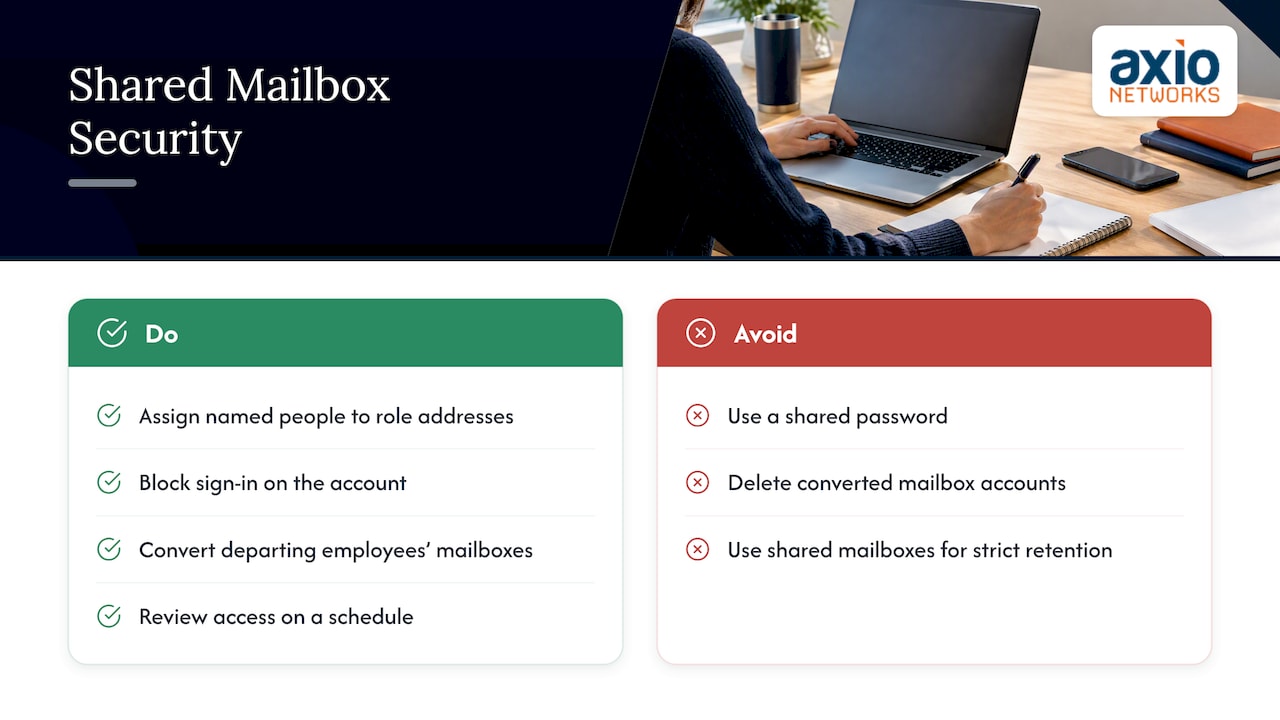
Our default is simple. Every role address becomes a shared mailbox, with named people on it, sign-in blocked on the underlying account, and a short written list of who has Send As. Departing employees’ mailboxes get converted rather than deleted, so nothing is lost and the seat is released. We keep the anchor account in place, and we review access on a schedule rather than when someone remembers.
We build security into every service we deliver, and email is where it shows up first. A shared mailbox done right removes a credential from circulation. Done carelessly, it becomes a hidden doorway. When a regulated business needs real retention, we say plainly that a shared mailbox is not the tool and set up proper archiving.
— Jim O’Connell
Common mistakes to avoid
- Licensing shared mailboxes by reflex. Often someone assigned a license to “make it work.” Find out why before you pay for it.
- Deleting the account of a departed employee. Convert first, then keep the anchor account.
- Letting a shared mailbox grow past 50 GB unnoticed. Watch storage on busy addresses like invoices and orders.
- Giving everyone Full Access. Limit it to people who answer the address, and add Send As only where needed.
- Using it for apps that send mail. SMTP AUTH senders need a different approach.
- Treating it as a legal archive. It is not one.
- Never reviewing access. Stale permissions are common, and you can list shared mailboxes with no delegates at all using a short PowerShell query.
More on structure and permissions is in our guide to best practices for managing shared mailboxes.
Who sets this up for you
If you do not have an in-house IT person, these changes are easy to put off and easy to get wrong. Our Managed Microsoft 365 service covers mailbox setup, licensing clean-up, access reviews and offboarding as part of a flat-rate agreement, with security built in. We are a local team serving the Phoenix metro area, including Scottsdale. If you would like a second look at how your business email is set up, start with our managed IT services.
FAQ
Does a shared mailbox need a license?
Not if it stays under 50 GB and no one signs in to it directly. Above 50 GB it needs an Exchange Online Plan 2 license, and an online archive needs a license as well. The people who open the shared mailbox still need their own licensed accounts.
Can I convert a user mailbox to a shared mailbox without losing email?
Yes. The conversion keeps the mailbox contents. The mailbox needs an Exchange Online license when you convert, and you can usually remove the license afterward if it is under 50 GB. Keep the underlying account, because deleting it can break the mailbox.
Can a shared mailbox send email?
Yes, through users who have Send As or Send on Behalf permission. Replies then show the shared address. What a shared mailbox cannot do is authenticate as a sender for apps that use SMTP AUTH, so those usually need a licensed account or another sending method.
How many people can use one shared mailbox?
Microsoft’s guidance is about 25 users or fewer. Beyond that, you may see connection failures or duplicated messages. For larger audiences, a Microsoft 365 Group or a distribution list is usually a better fit, depending on whether people need to respond or just receive.
Sources
- About shared mailboxes in Microsoft 365 (Microsoft Learn)
- Open and use a shared mailbox in Outlook (Microsoft Support)
- Compare types of groups in Microsoft 365 (Microsoft Learn)
- Exchange Online plans and pricing (Microsoft)
- How to convert user mailbox to shared mailbox (o365info)
- Shared mailbox SMTP auth (Microsoft Q&A)
- Shared mailbox OAuth access (Microsoft Q&A)
- Create mailbox rule in PowerShell (Microsoft Q&A)
- List shared mailbox with no users assigned (Microsoft Q&A)
- Understanding Exchange shared mailbox permissions (Practical365)